Adding Team Members
In Truto, you can invite others to collaborate with you. Here's a simple guide on how to add team members:
Steps to Add a Team Member
-
Log in to your Truto account.
-
Navigate to
Settingsand selectTeam Membersor simply click here.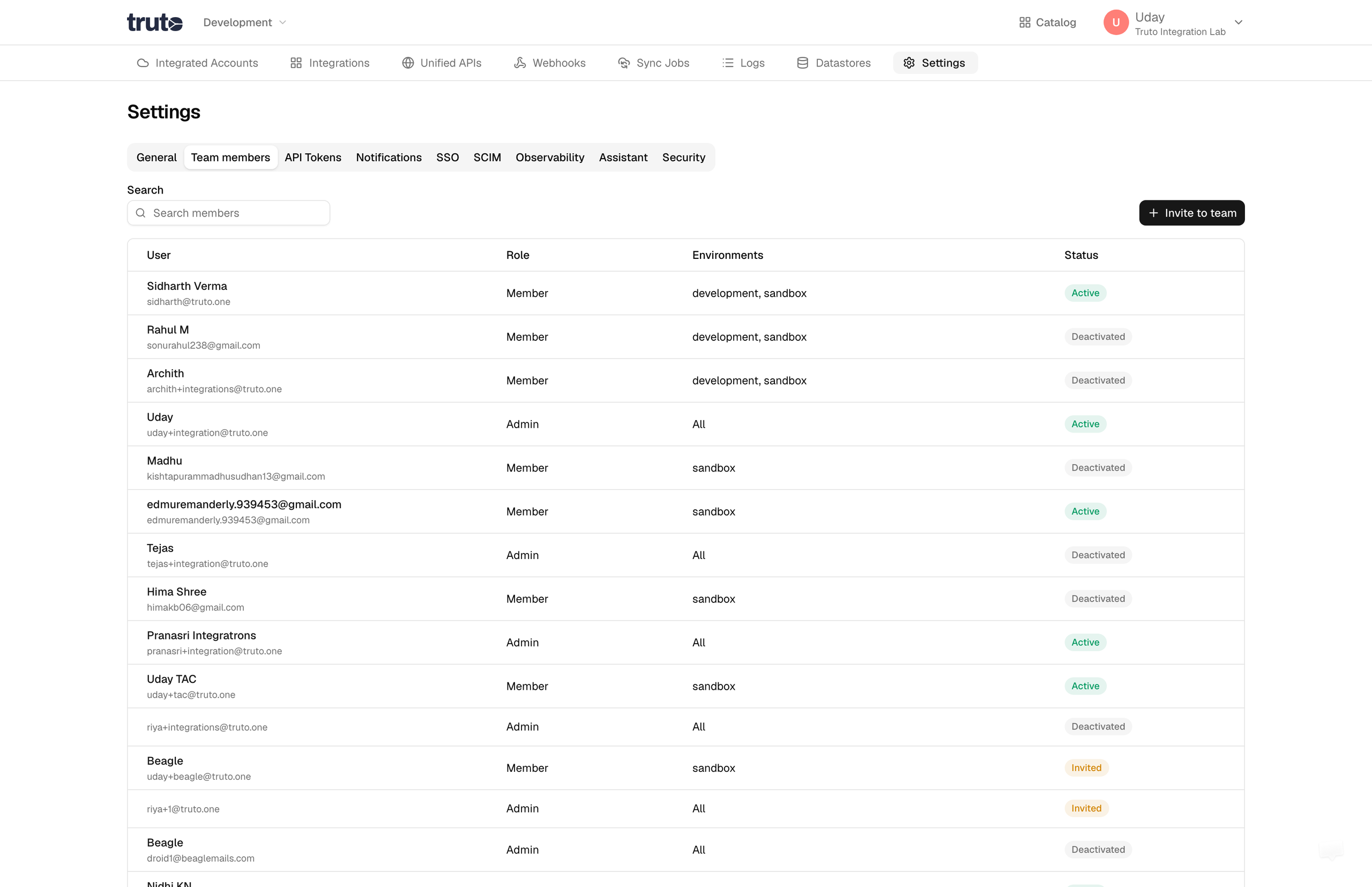
-
Click on the
Invite to Teambutton. -
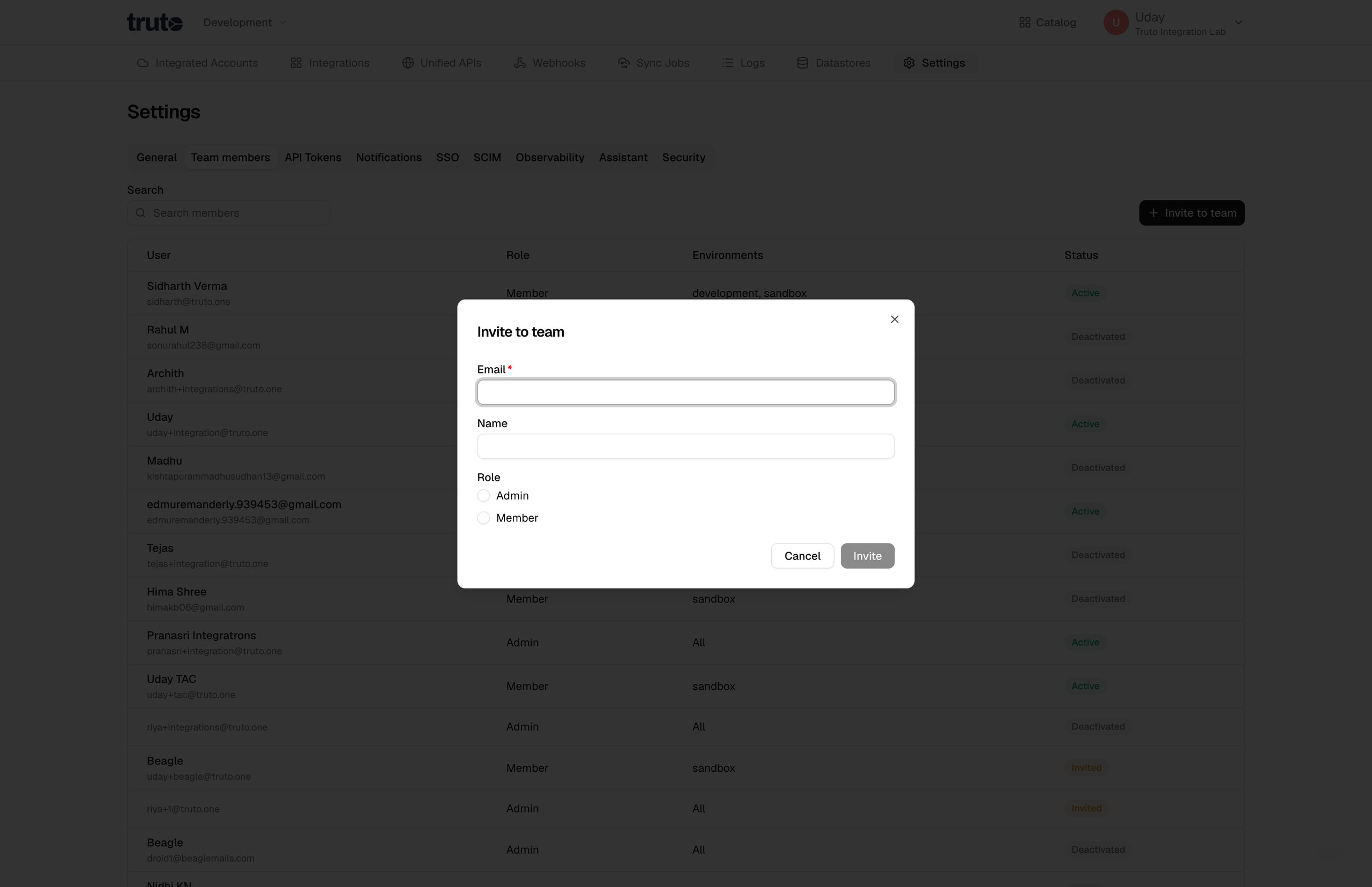
Fill in the details of the person you want to invite. These details include:
- Email (required)
- Name
- Role: You can assign one of two roles, 'Admin' or 'Member'.
- Environments: Shown only for the 'Member' role. You can grant access to one or more environments (Staging, Development, or Production). Admins get access to all environments.
-
After selecting all the details, click on the 'Invite' button.
-
An invitation will be sent to the person's email. They can join your team by accepting the invitation.
And that's it! You have successfully sent an invitation to your team member.
To remove someone later, open their entry in Team Members and turn off the Active toggle. They are removed from the team; their Truto account stays.
Understanding Roles and Environments
-
Role:
- Admin: Admins can add members and have access to all environments.
- Member: Members cannot add members. They have access only to environments that the Admin allows.
-
Environments:
- Staging: This is a testing environment.
- Development: This is where you build and test your product.
- Production: This is the live environment, where your product is fully functional and available to users.