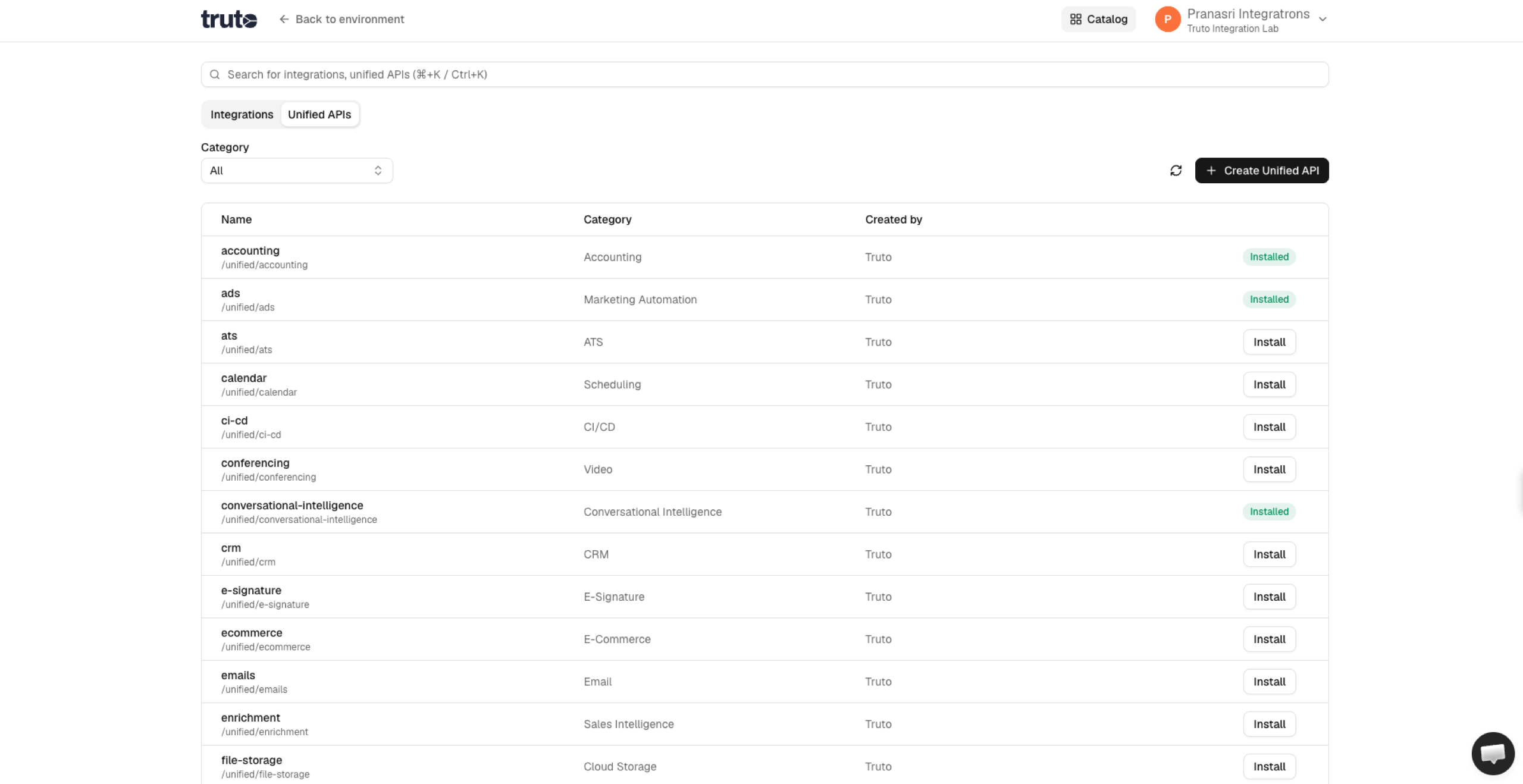
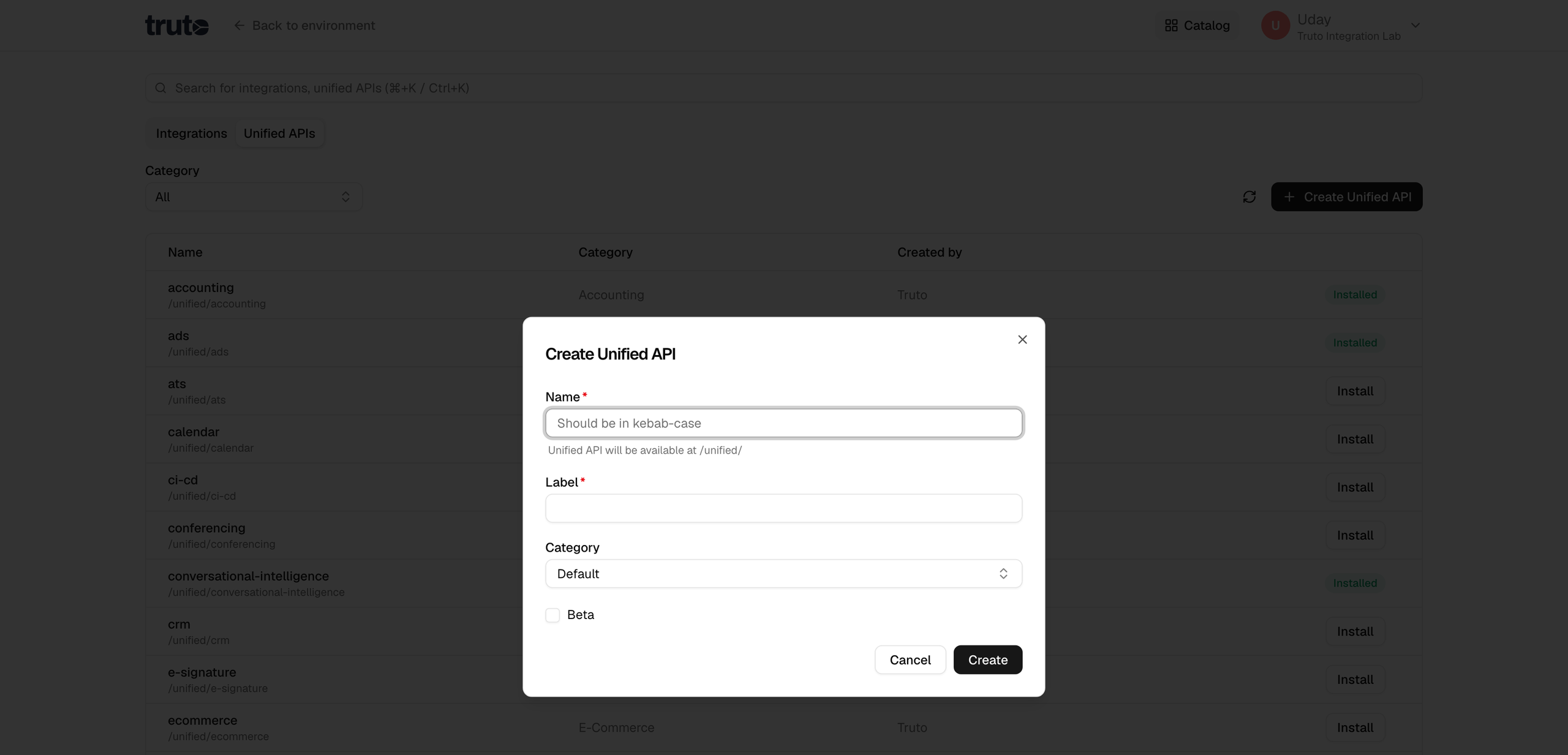
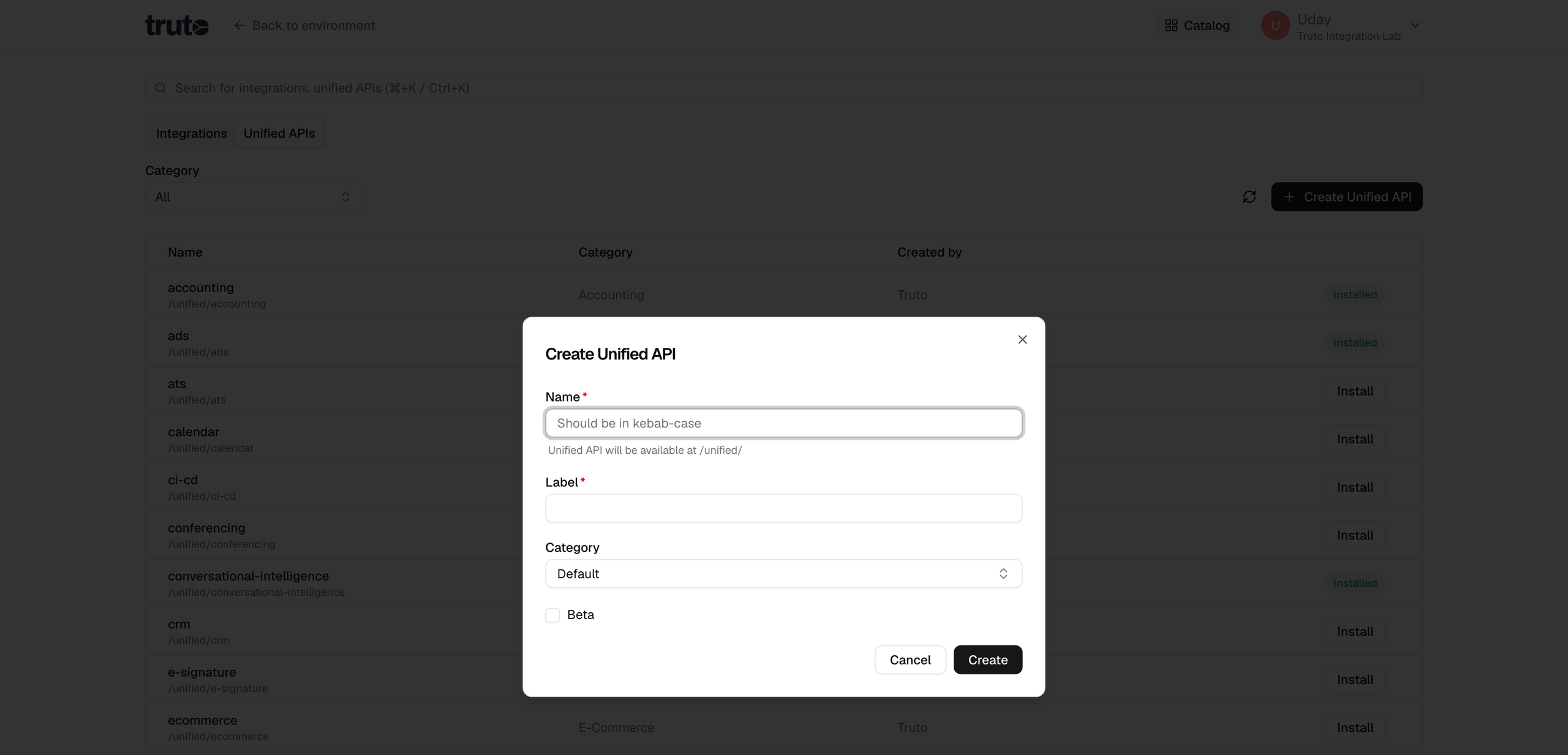
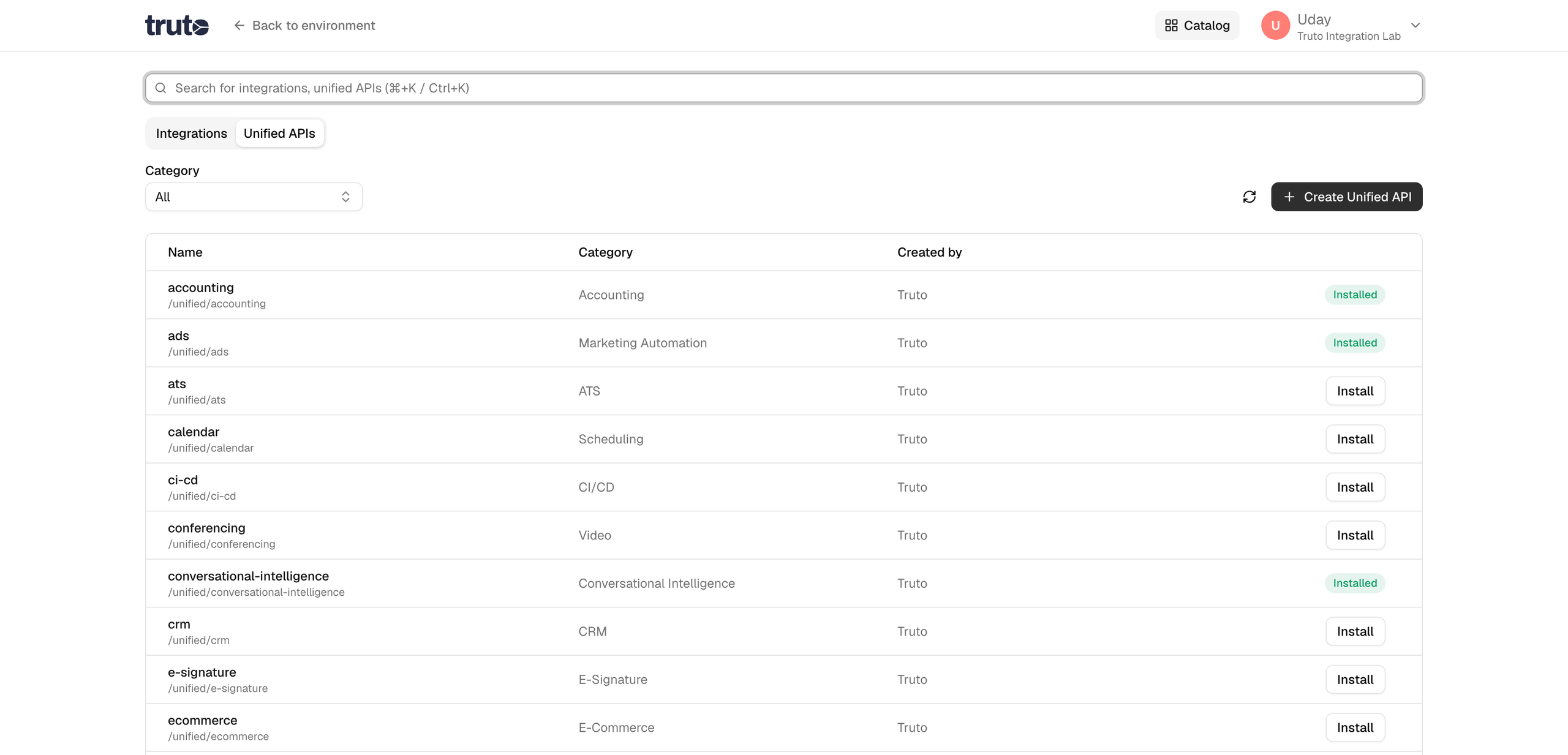
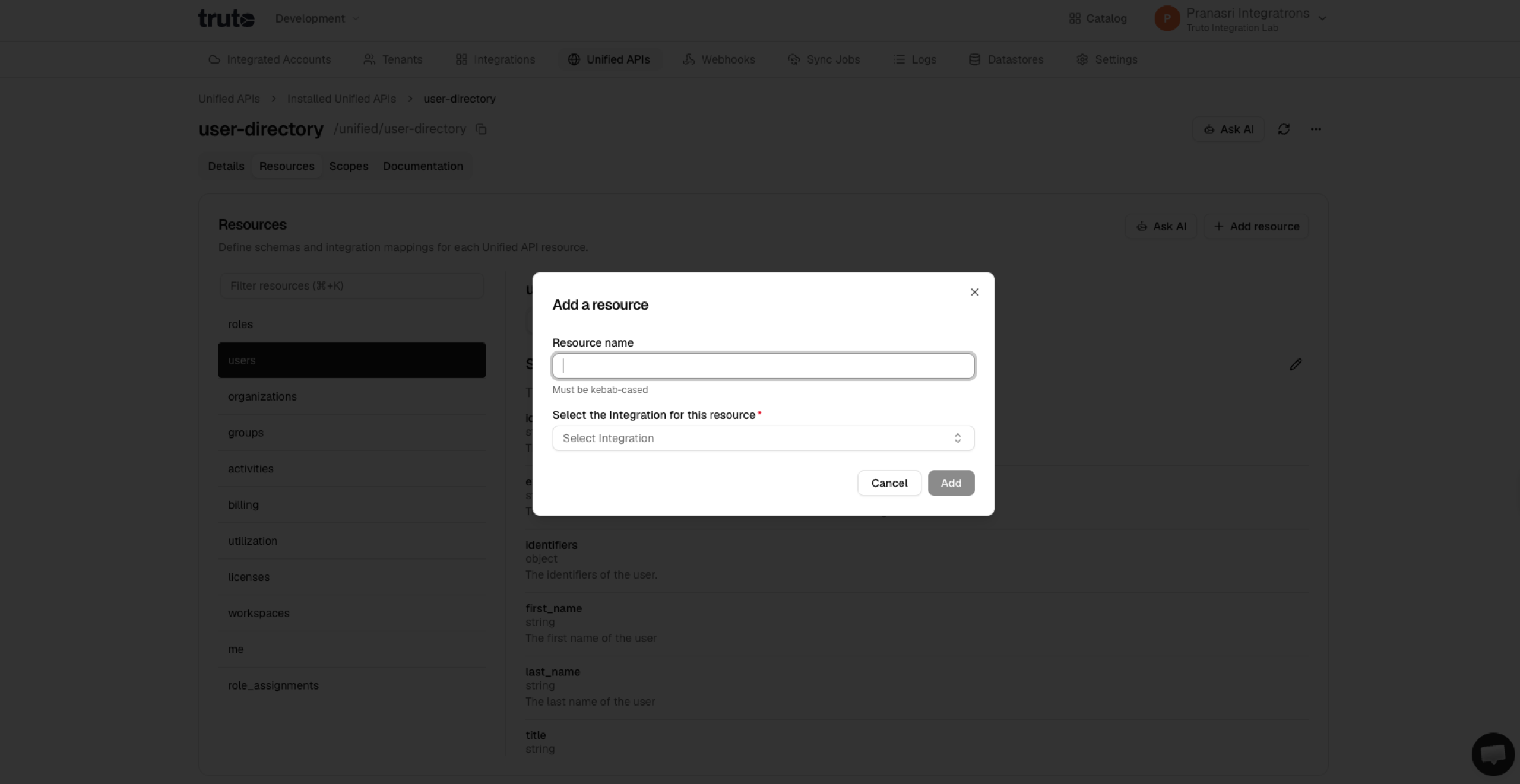
Truto allows you to create Unified APIs that simplify how different applications interact. This guide will walk you through creating a Unified API for a CRM system using Salesforce as the integration example.
The schema defines the structure of the response data your Unified API will handle. This is used only for documentation purposes and isn't used in validation.
Edit Schema:
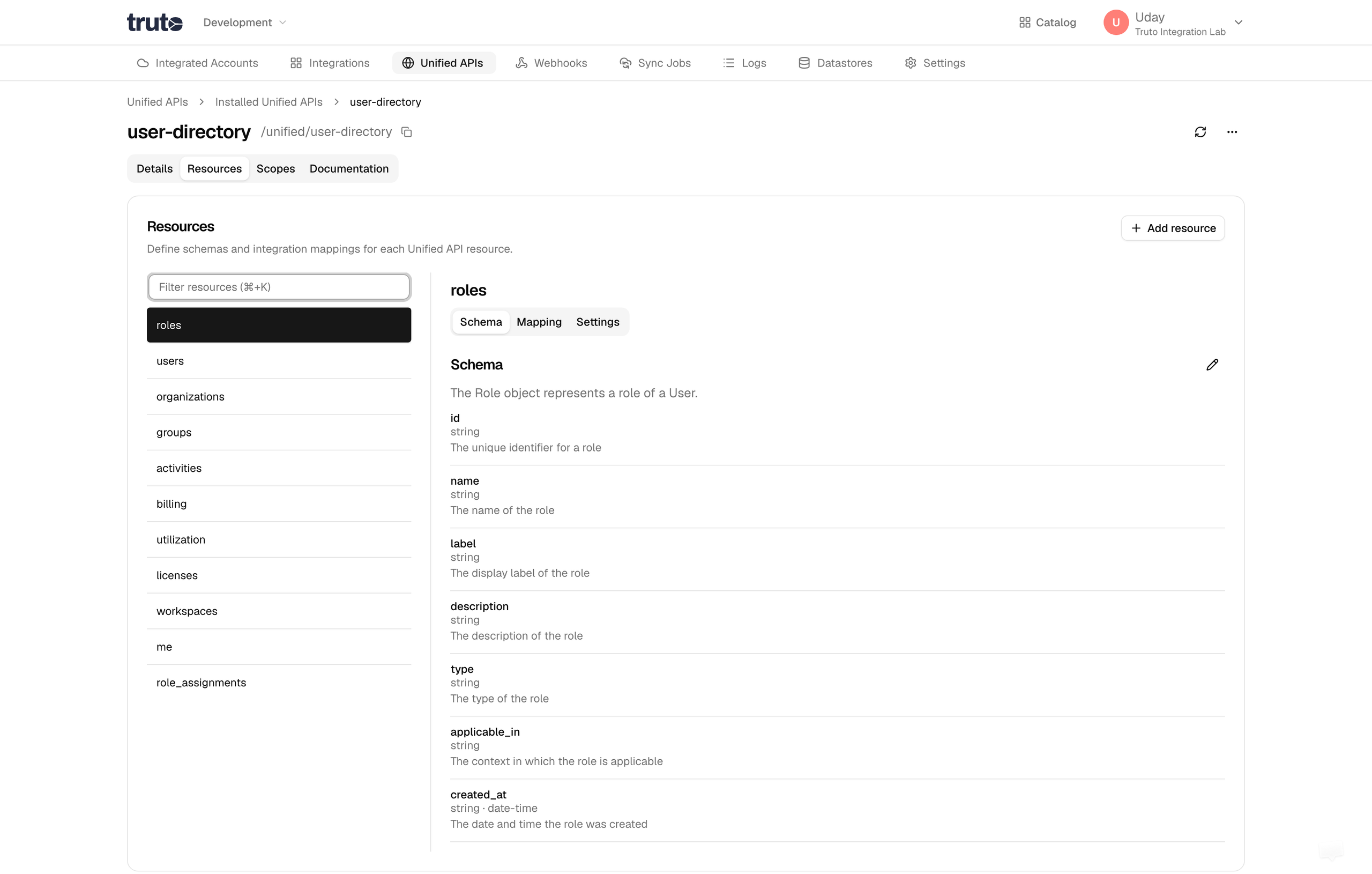
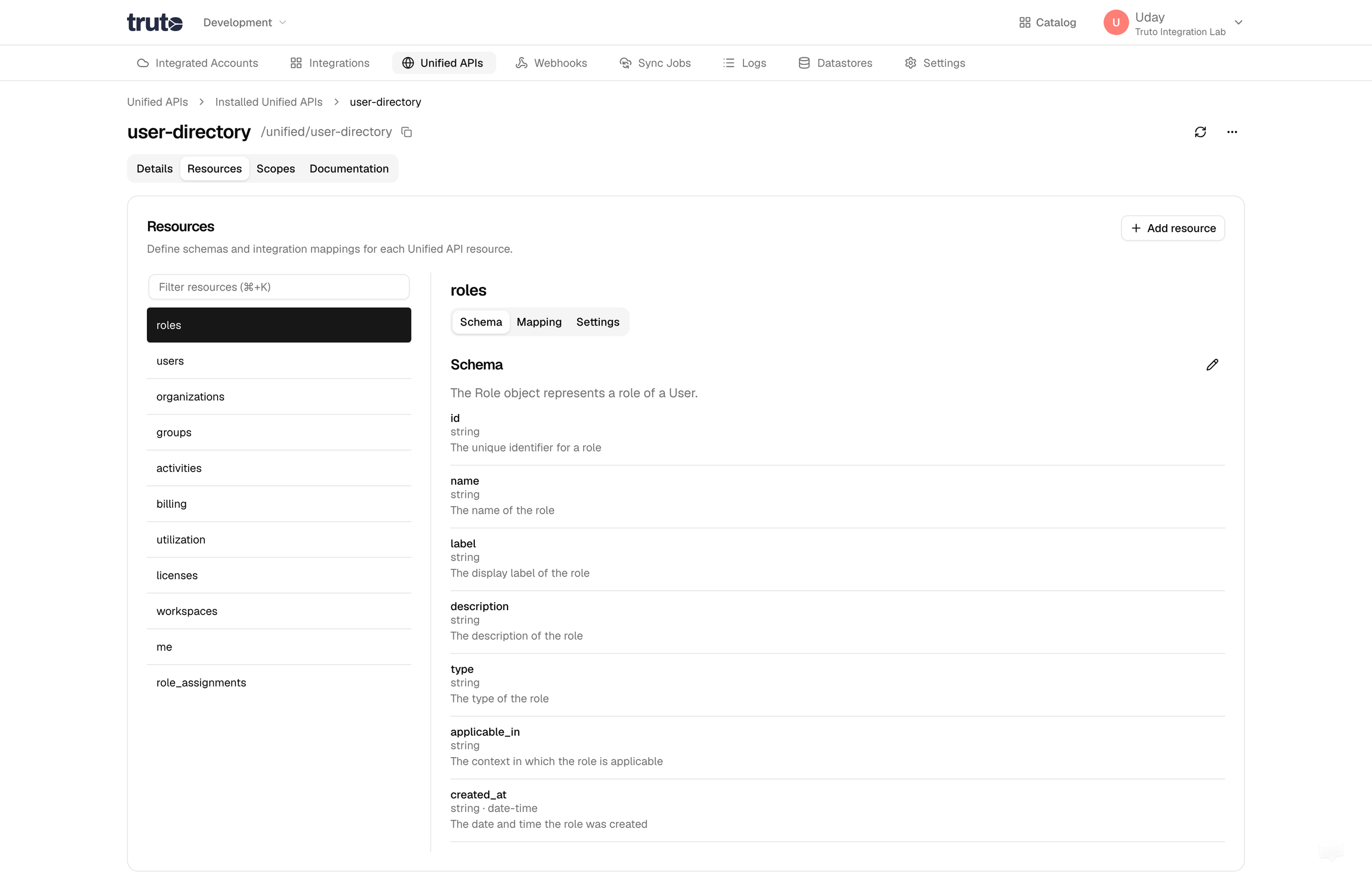
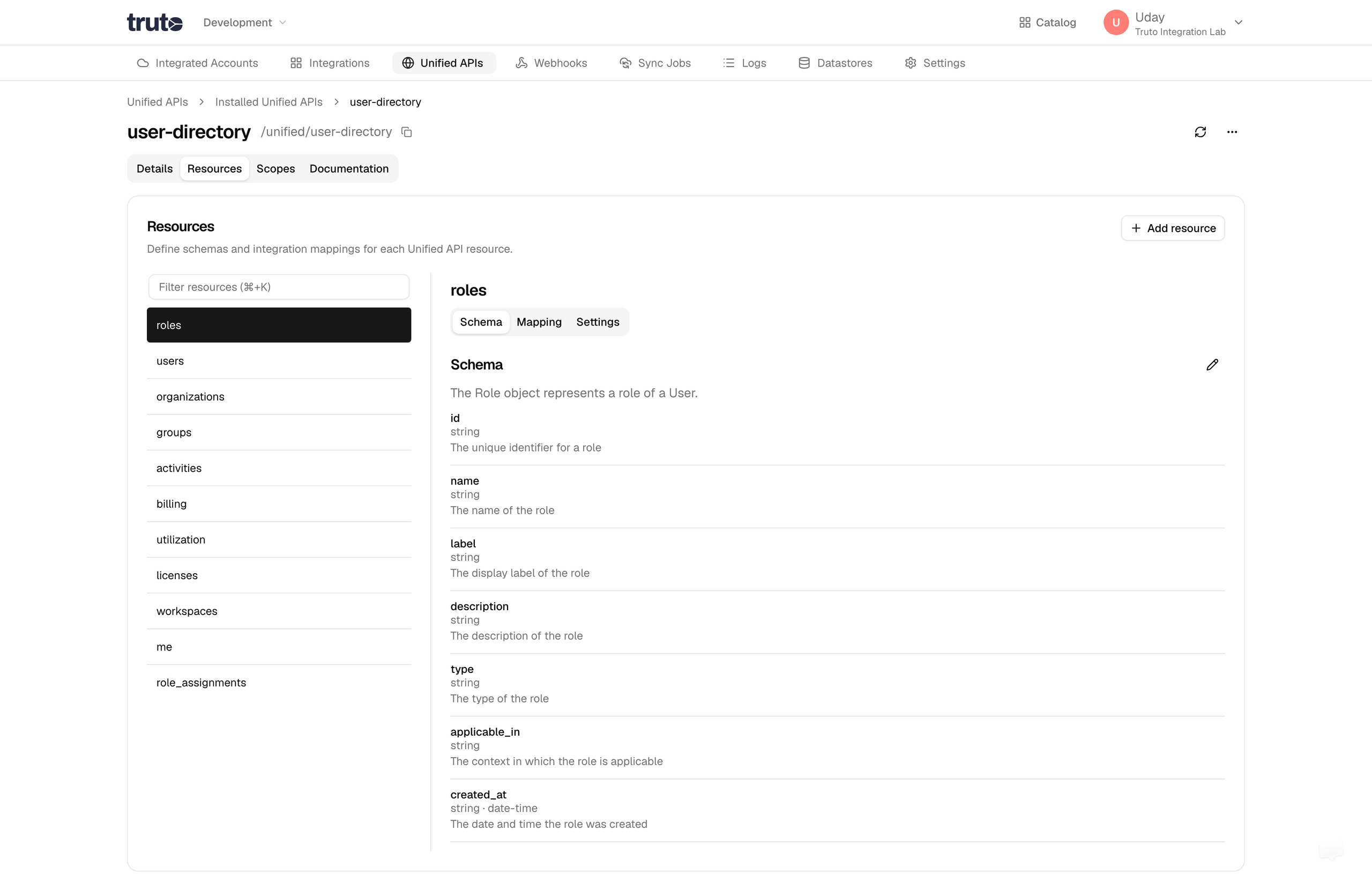
In the Resources tab, select your newly added accounts resource.
Click on the Schema tab.
Click the edit (pencil) icon to modify the schema.
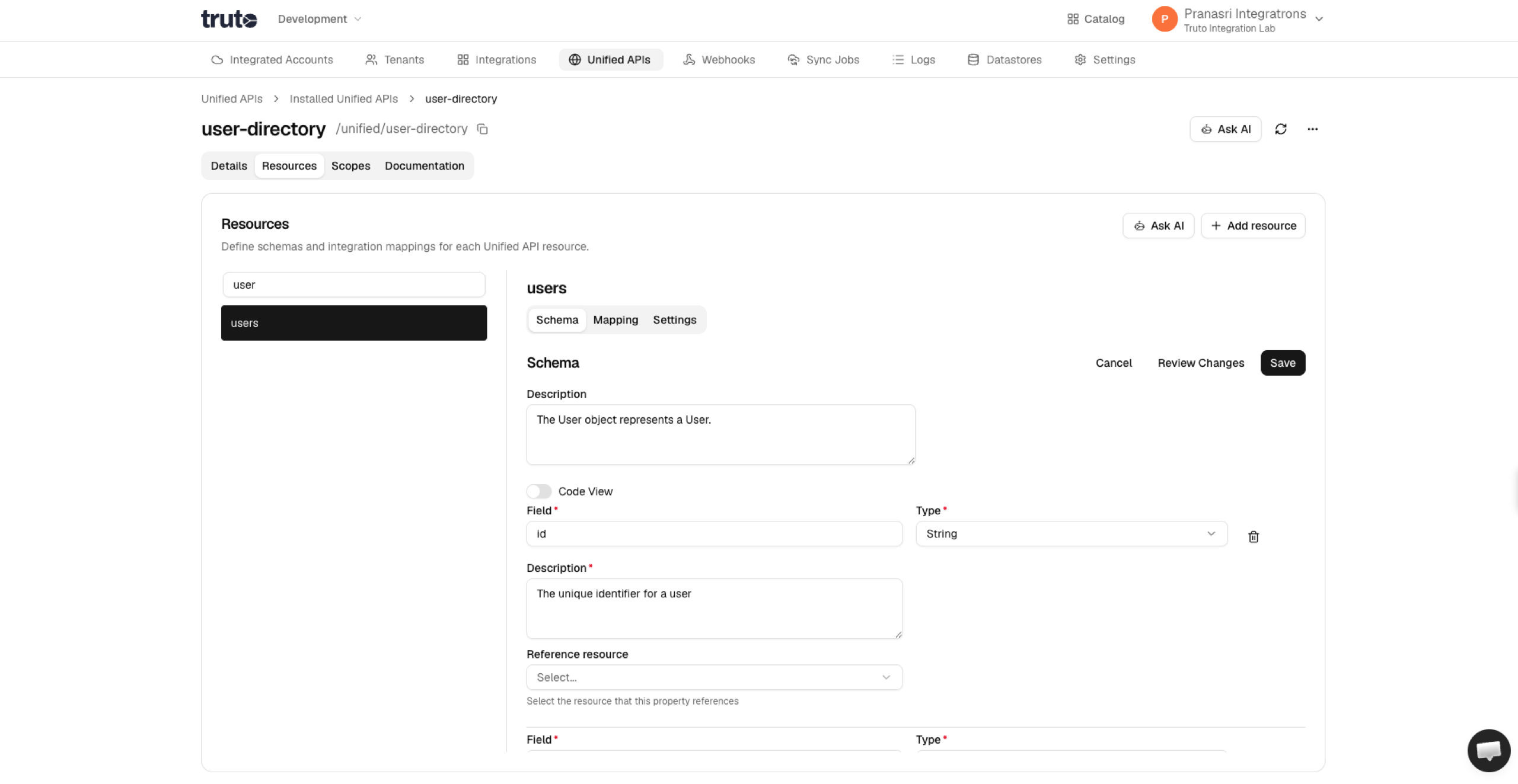
Define the Schema:
Fields: Specify each piece of data your API will manage.
Types: Indicate the type of data (e.g., string, integer).
Descriptions: Provide a brief explanation for each field.
You can add the schema using the Form or in JSON.
Save the Schema:
After entering all fields, click the Save button.
Note: This is how the schema will look like in JSON
{ "type": "object", "properties": { "id": { "type": "string", "description": "The account's unique identifier", "required": true }, "owner": { "type": "object", "description": "The account's owner", "properties": { "id": { "type": "string", "description": "The owner's unique identifier" } } }, "name": { "type": "string", "description": "The account's name" }, "website": { "type": "string", "description": "The account's website" } // Add other fields as needed }}
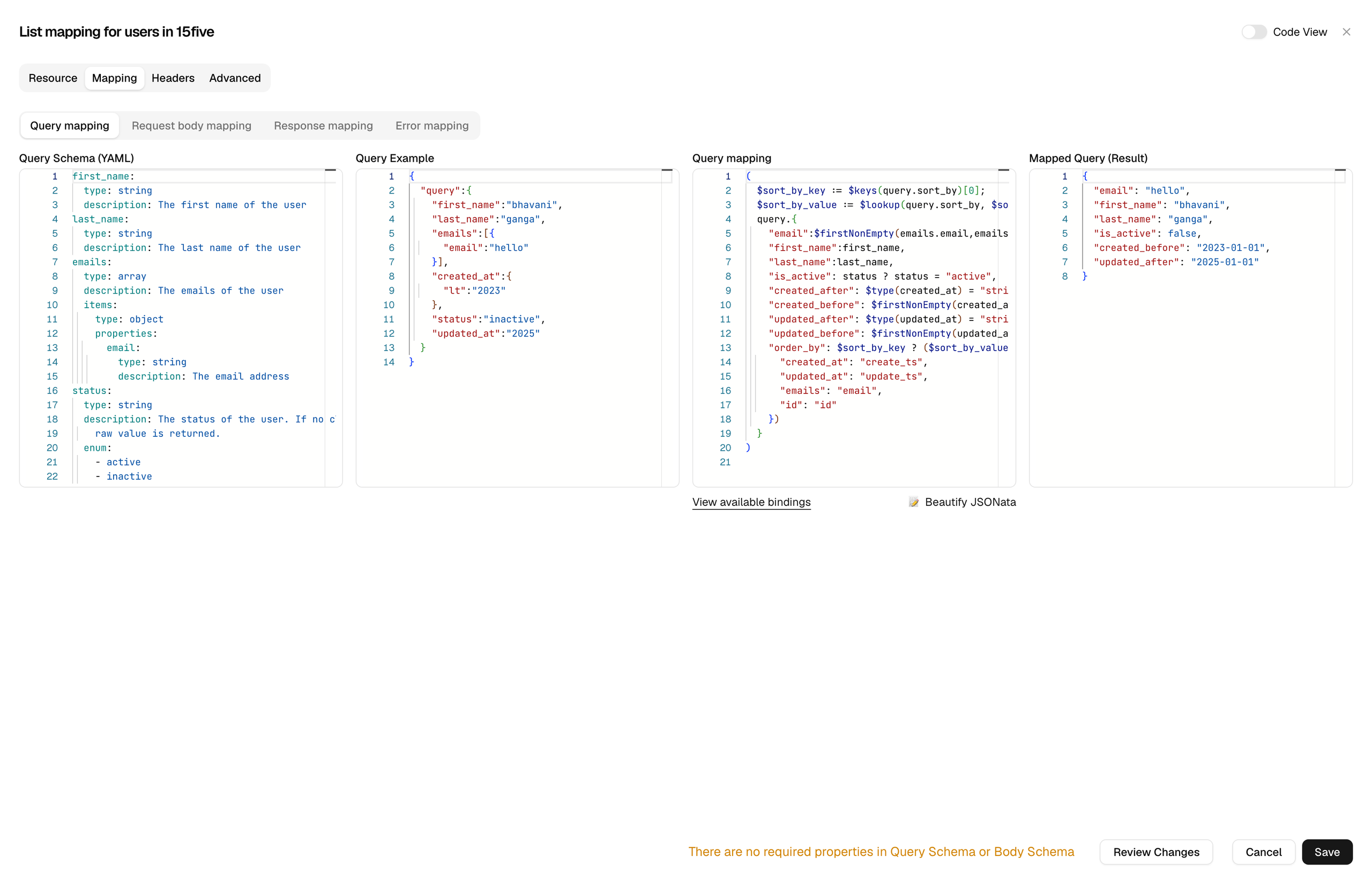
Translates query parameters in the Unified API call into the query supported by the underlying API.
This step is generally optional. Use it when you want to pass custom Query Params to the underlying API that are different from what you are passing in the request.
Go to Query Mapping:
Click on the Query Mapping tab.
Query Schema:
The Query Schema specifies what should be in the Query Parameters. Since the schema is defined in Resource Schema, you can just specify the fields from the schema that will be used in the Query and required, type, description will be automatically used from the Resource Schema. The Query Schema is specified in YAML.
This defines the structure of the data your API will return to users. This is specified in YAML and autopopulated from the Resource Schema defined above.
 type: object
 properties:
   id:
     type: string
     description: The account's unique identifier
     required: true
   owner:
     type: object
     description: The account's owner
     properties:
       id:
         type: string
         description: The owner's unique identifier
   name:
     type: string
     description: The account's name
   description:
     type: string
     description: The account's description
   industry:
     type: string
     description: The account's industry
   website:
     type: string
     description: The account's website
   number_of_employees:
     type: integer
     description: The account's number of employees
   addresses:
     type: array
     items:
       type: object
       properties:
         id:
           type: string
           description: The unique identifier of the address
         street_1:
           type: string
           description: Line 1 of the street address
         street_2:
           type: string
           description: Line 2 of the street address
         city:
           type: string
           description: The city
         state:
           type: string
           description: The state
         postal_code:
           type: string
           description: The postal code
         country:
           type: string
           description: The country
         type:
           type: string
           description: The address type
   phone_numbers:
     type: array
     items:
       type: object
       properties:
         id:
           type: string
           description: The unique identifier of the phone number
         number:
           type: string
           description: The phone number
         extension:
           type: string
           description: The extension of the phone number
         type:
           type: string
           description: The phone number type
   urls:
     type: array
     items:
       type: object
       properties:
         url:
           type: string
           description: The account's URL
         type:
           type: string
           description: The account's URL type
     description: The account's urls
   tags:
     type: array
     items:
       type: object
       properties:
         id:
           type: string
           description: The tag's unique identifier
         name:
           type: string
           description: The tag's name
     description: The contact's tags
   custom_fields:
     type: object
     description: All the custom fields present on the account
     additionalProperties: true
   last_activity_at:
     type: string
     description: The date and time of the account's last activity
     format: date-time
   updated_at:
     type: string
     description: The date and time of the account's last update
     format: date-time
   created_at:
     type: string
     description: The date and time of the account's creation
     format: date-time
Provide an Example Response:
Provide an example raw API response from Salesforce so that you can verify your mapping
Once done, save your mapping by clicking on Save. This will save your Unified API mapping for the resource.
You can test the Unified API created after connecting an Integrated Accounts.
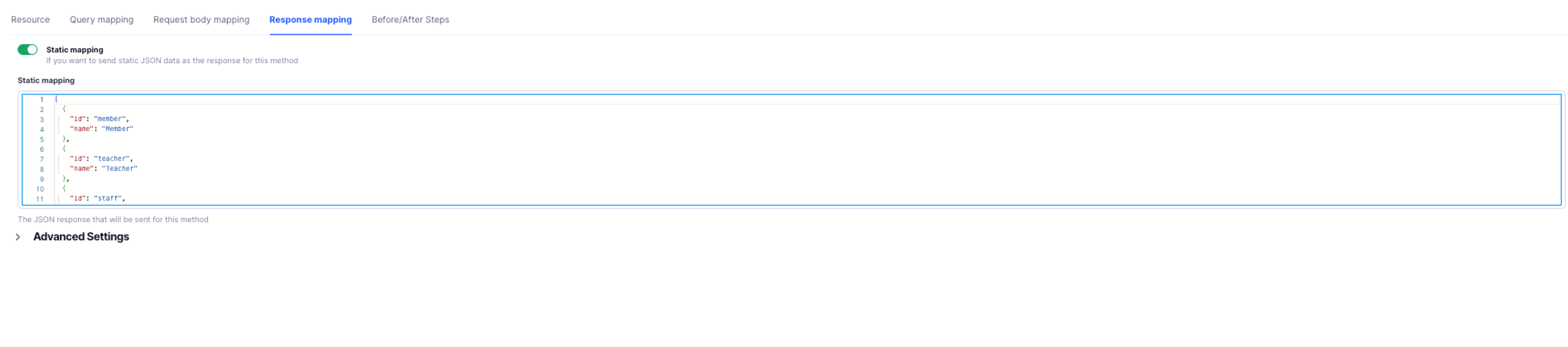
Sometimes, an API endpoint always returns the same, unchanging data (like a predefined list of options or a fixed configuration). In such cases, instead of making unnecessary API calls to fetch the same static data every time, you can use Static Mapping.
Static Mapping allows you to configure a response directly in the Unified API, so the response is sent without actually making any API calls. This is especially useful for list or get endpoints where the data doesn't change often or at all - you can enable Static Mapping for these methods.
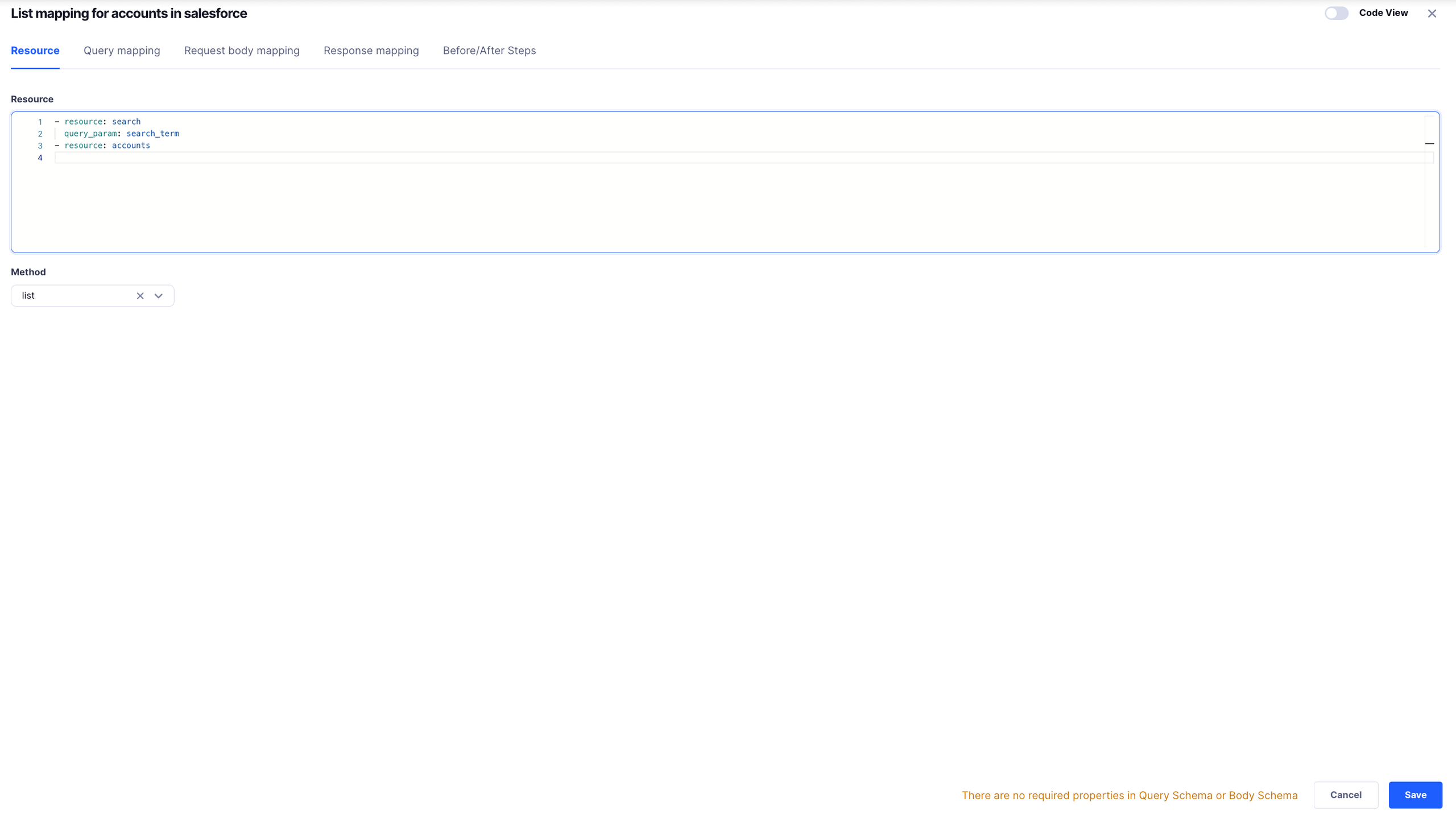
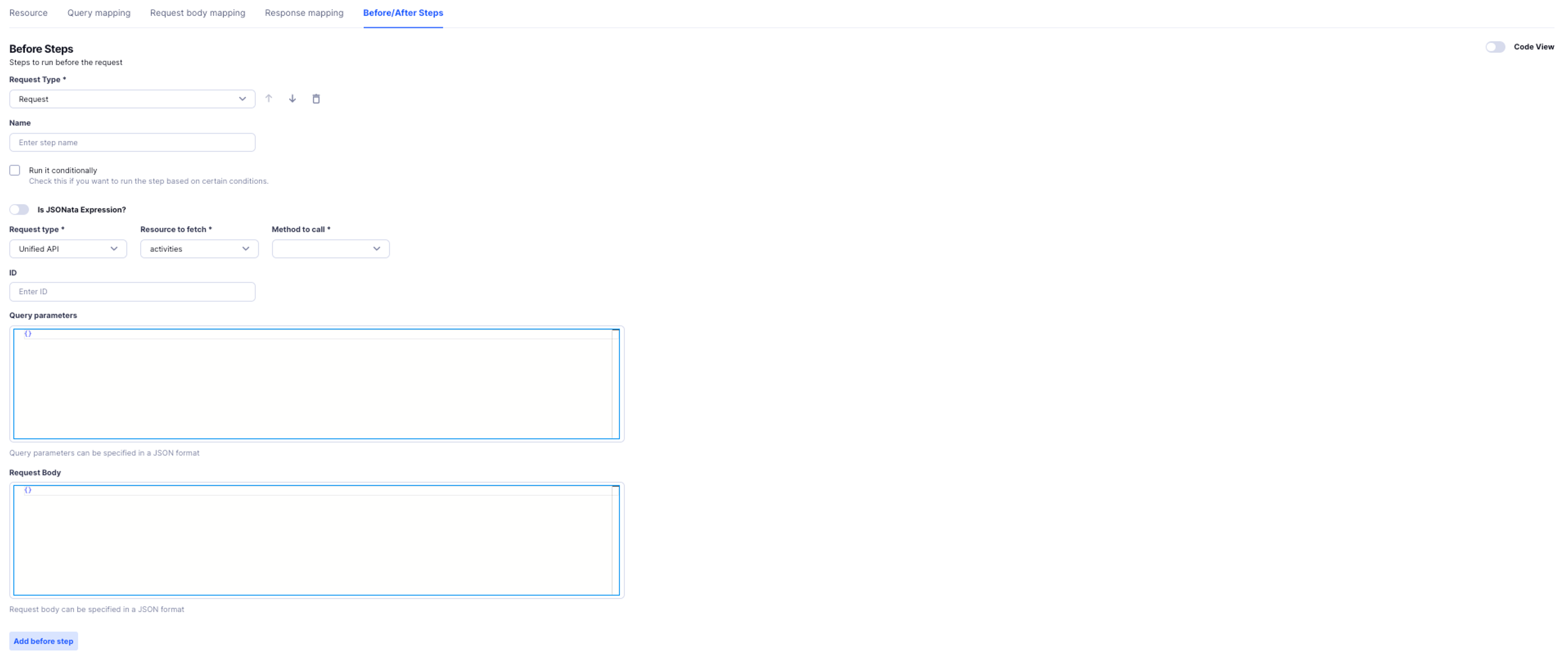
Before Steps are actions that run before the main request is made by the Unified API. Think of Before Steps as a way to prepare your request with extra data, replace missing fields, or add logic to handle specific conditions.
Use this step to call another Unified API resource and fetch additional data before the Unified API call.
When to Use It:
If your request requires data from another resource, like fetching interview details before querying candidates.
Setup:
Name: Enter a name for the step.
Example: Fetch Interview Details
Run Conditionally: Enable this to only run the step when needed.
Run If (Optional): Add a JSONata expression to decide whether the step should run.
Example:
$exists(query.interview_id)
This step will run only if interview_id exists in the query.
Is JSONata Expression?: Enable this to specify a JSONata expression for the Request.
You should specify the following attributes in the JSONata expression :
resource - The name of the resource to call
method - The method which can be a get, list, create, update, delete
type - The type of the request which is, Unified or Proxy.
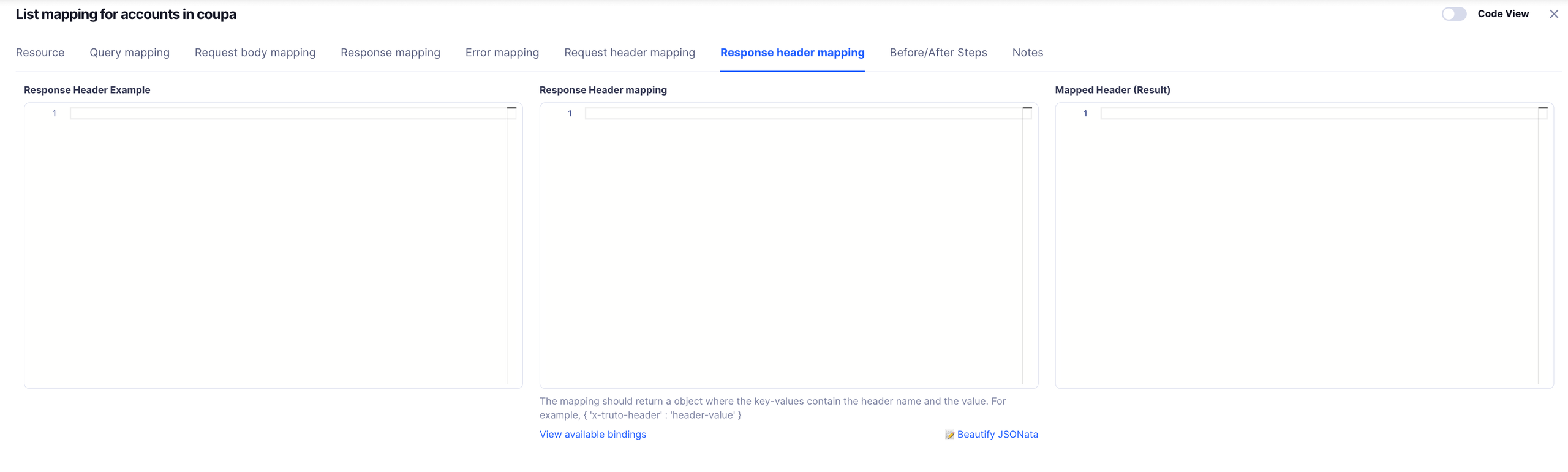
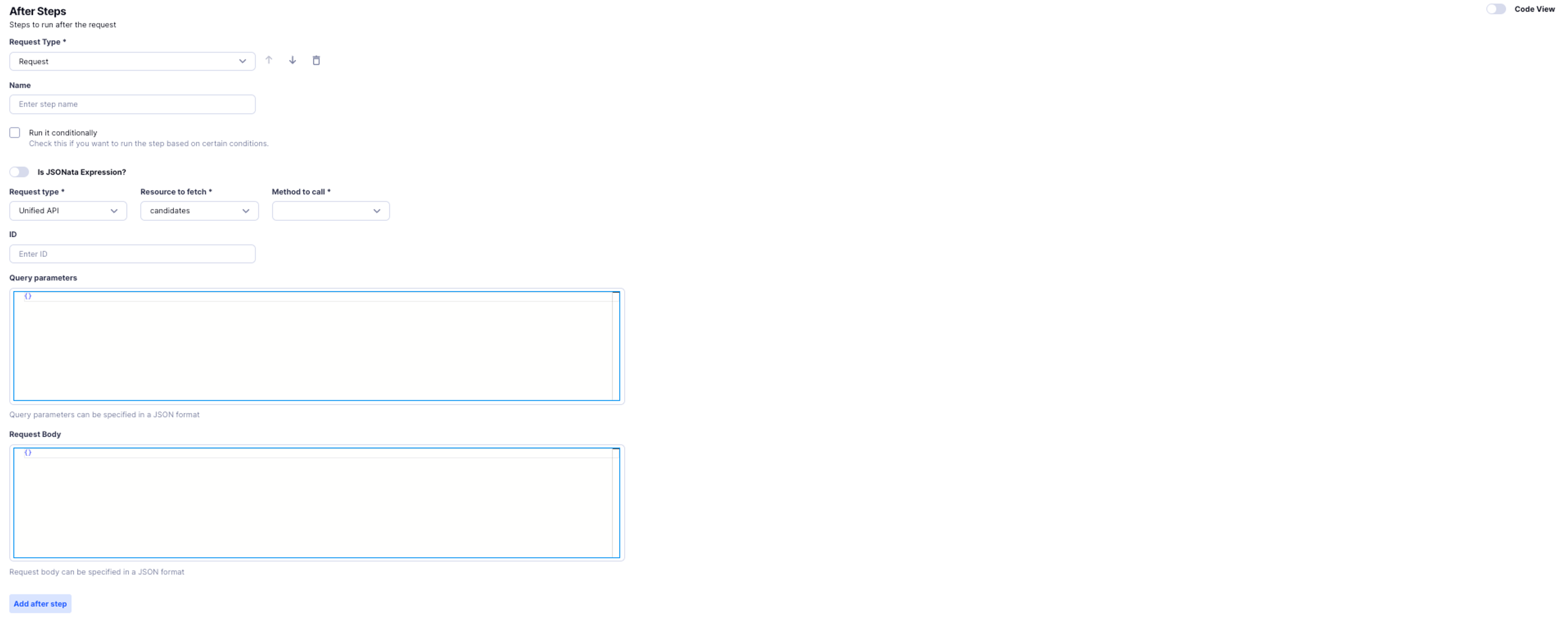
After Steps are actions that run after the main request is made by the Unified API. Think of After Steps as a way to modify your request with extra data, replace missing fields, or add logic to handle specific conditions before returning the data to the user.
Use this step to call another Unified API resource and fetch additional data after the Unified API call.
When to Use It:
Say, for example, in a PATCH request, if the underlying API only returns the id of the updated resource, you can use after steps to fetch the complete details. After the PATCH request is processed, an after step can make a GET call to retrieve the full resource data and return the complete response to the user
Setup:
Name: Enter a name for the step.
Example: Fetch Interview Details
Run Conditionally: Enable this to only run the step when needed.
Run If (Optional): Add a JSONata expression to decide whether the step should run.
Is JSONata Expression?: Enable this to specify a JSONata expression for the Request.
You should specify the following attributes in the JSONata expression :
resource - The name of the resource to call
method - The method which can be a get, list, create, update, delete
type - The type of the request which is, Unified or Proxy
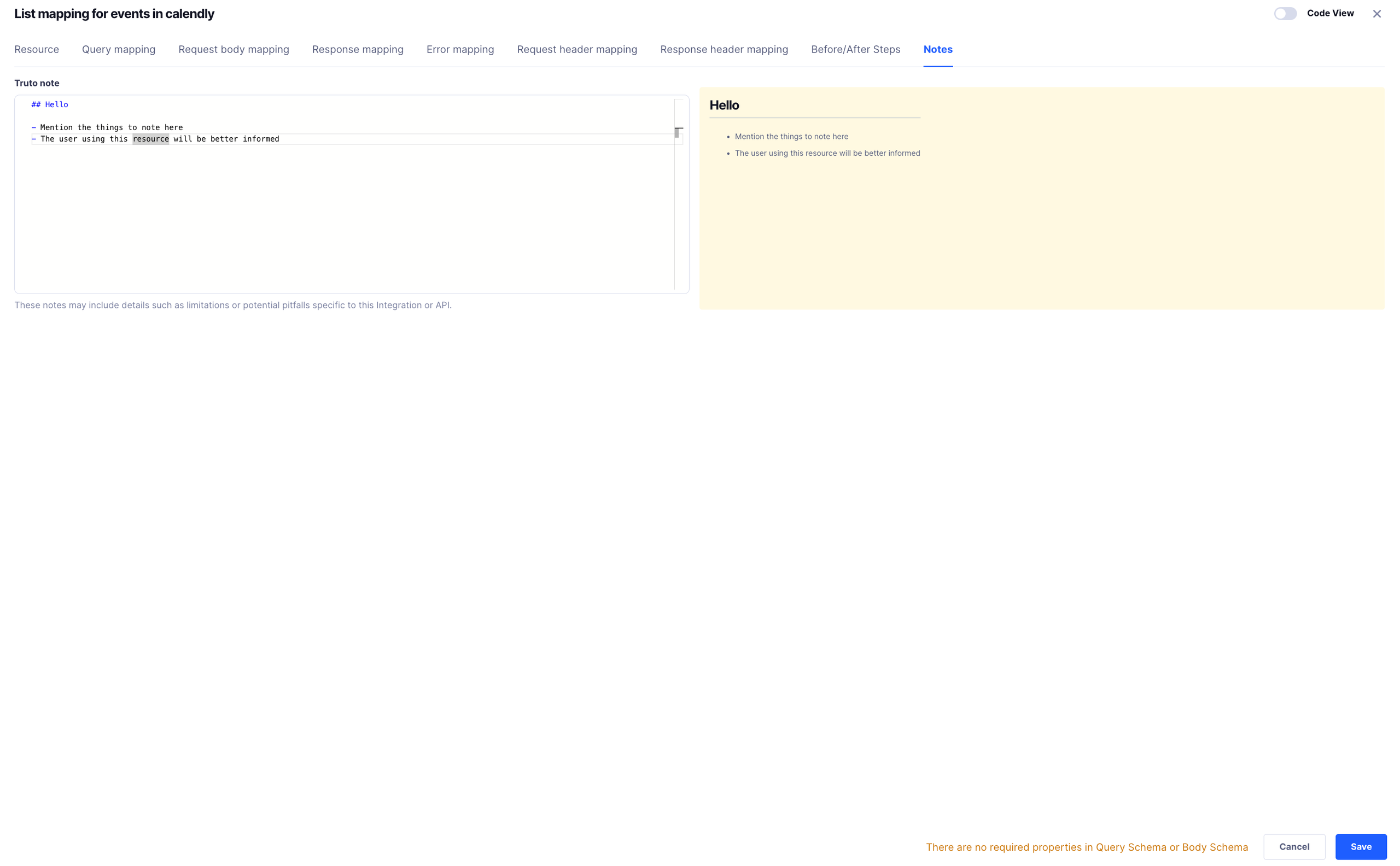
This section is a space where the Truto team jots down important details, limitations, and potential pitfalls specific to this resource in our Unified Model. You can also add details here to note important details.
Key Characteristics:
Describe what makes this resource unique or any quirks it might have. This helps set expectations and provides context.
Usage Tips:
Share simple tips and best practices on how to use this resource effectively. For example, mention common pitfalls or suggest smoother ways to handle certain tasks.
Limitations:
Point out any known limitations or constraints. If the underlying API has restrictions that affect this resource, note them here in plain language.
Troubleshooting Advice:
Offer friendly guidance on what to do if things don't work as expected. This can include hints on where to look for errors or how to fix common issues.
Reminders and Warnings:
Add any reminders or gentle warnings that can help users avoid mistakes or understand important considerations when interacting with the resource.
General Observations:
Write down observations or thoughts that might be useful for anyone working with or maintaining this resource in the future.
Navigation
Cookies
Cookie Settings
We use cookies and similar technologies to analyze site traffic, understand where our visitors come from, and improve your browsing experience. Read our Cookie Policy.
Customize
Your preferences
Choose which categories of cookies you allow. You can change this anytime.
Strictly necessaryAlways on
Required for the site to function. Cannot be disabled.
Analytics & marketing
Helps us understand traffic and improve the product (Google Tag Manager).