Using the Sync Jobs UI
Manage sync jobs from app.truto.one. Sign in, then choose Sync Jobs in the sidebar.
This guide walks through each screen in the dashboard. For what sync jobs, runs, schedules, and templates mean, see the Sync Jobs overview.
List jobs
The Jobs tab lists every sync job in the selected environment.
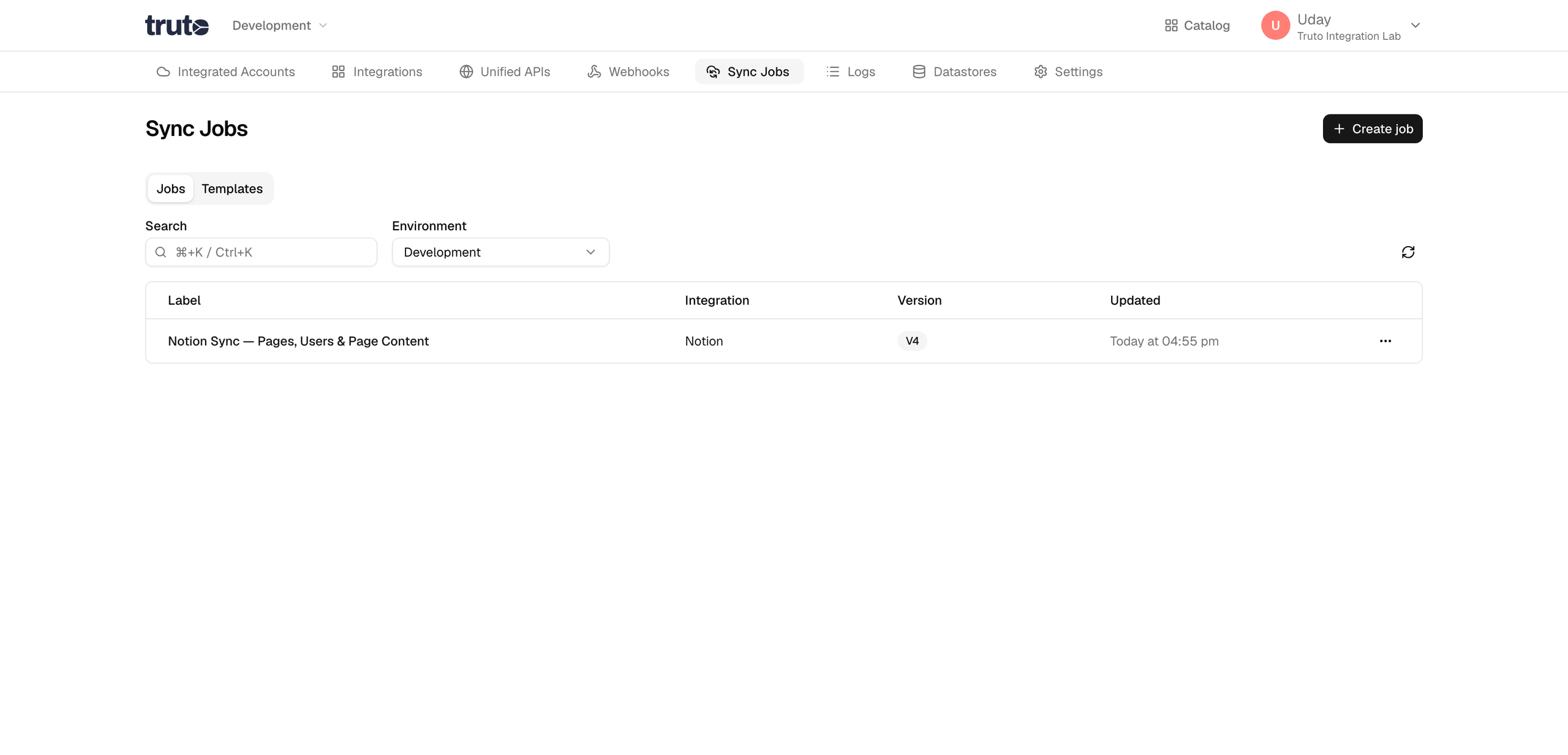
- Sync Jobs in the sidebar opens this page.
- Jobs and Templates switch between your job list and reusable blueprints.
- Create job opens the form for a new sync job.
- Search filters jobs by label, integration, or ID.
- The environment selector limits the list to one environment.
- Each row shows Label, Integration, Version, and Updated. Click the label to open the job.
- The row menu offers Edit, Trigger run, and Delete.
Open a job
Click a job's label to open its detail page.
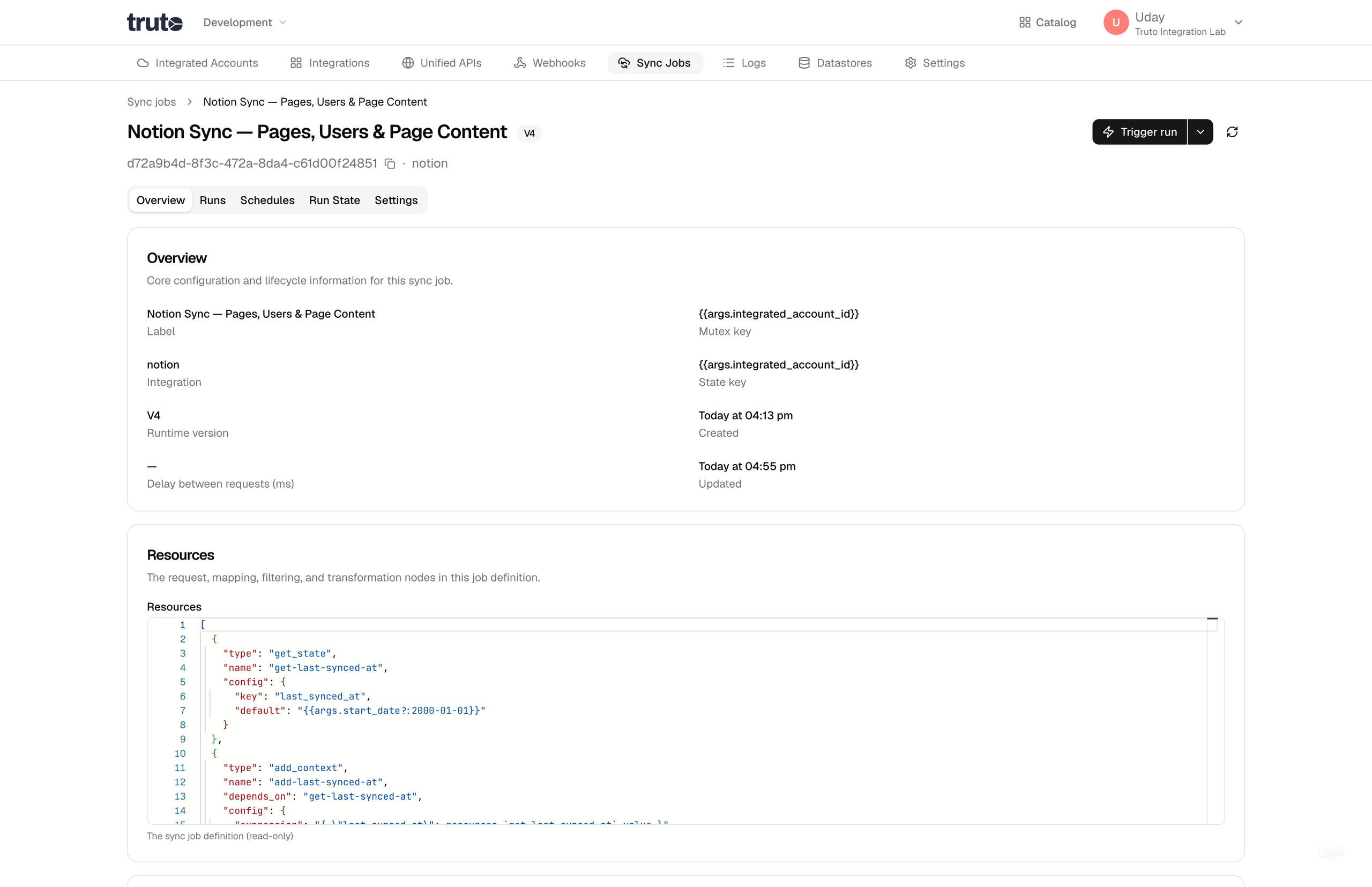
- « Sync jobs returns to the list.
- The job Label and runtime version tag appear at the top.
- Trigger run starts a new sync job run.
- The menu next to Trigger run offers Run with last args, View runs, Edit, and Delete.
- The job ID and integration name are shown below the title.
- Overview, Runs, Schedules, Run State, and Settings switch between detail tabs.
Overview
The Overview tab is a read-only summary of the job definition.
- Label, Integration, Runtime version, and Delay between requests (ms) describe the job at a glance.
- Mutex key and State key control concurrency and incremental sync state.
- Created and Updated show when the job last changed.
- Resources shows the pipeline definition (read-only JSON).
- Arguments schema and Arguments validation appear when the job accepts runtime arguments.
Runs
The Runs tab lists every sync job run for this job.
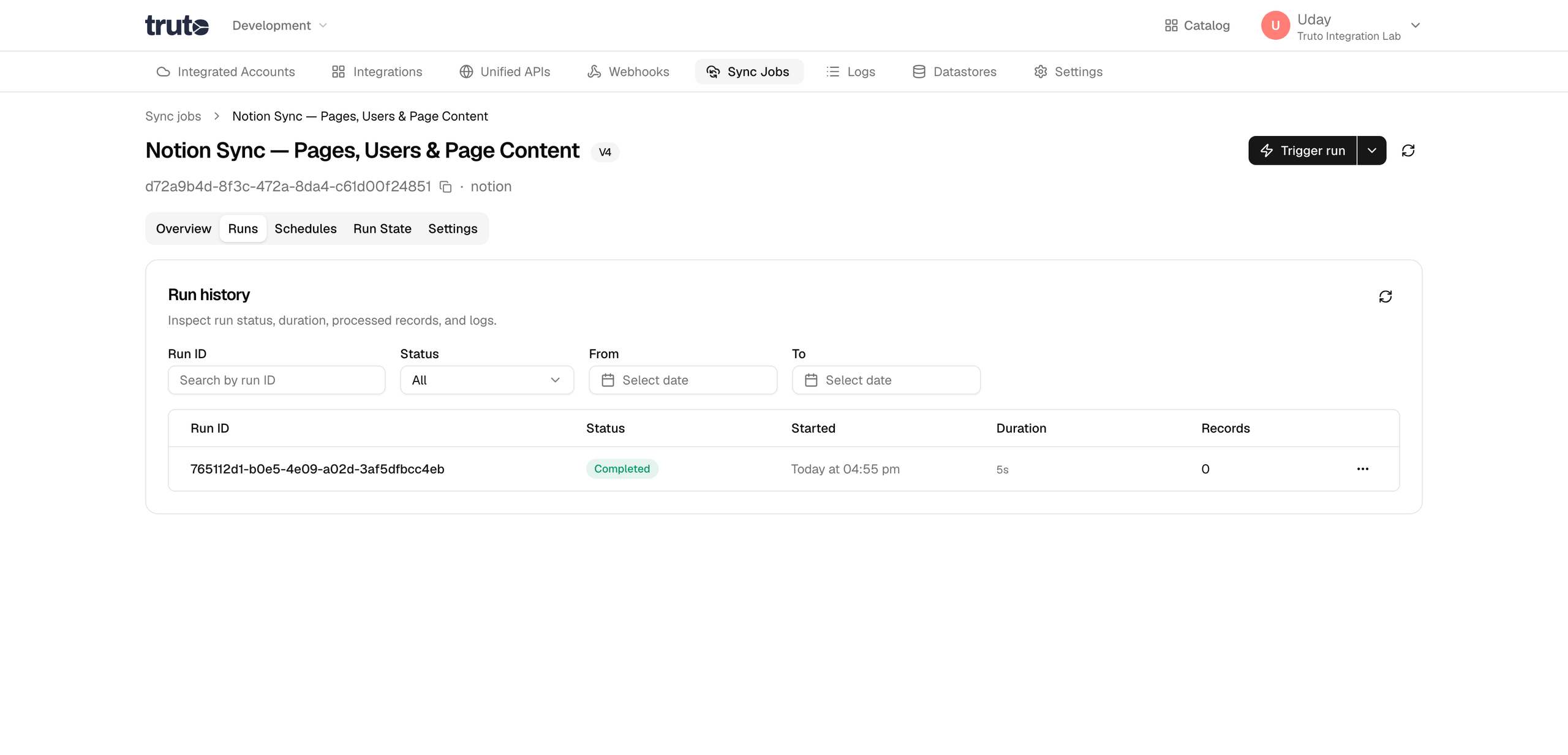
- Filter by run ID, Status, or date range.
- Each row shows Run ID, Status, Started, Duration, and Records.
- Click a run ID to open the run detail page.
- The row menu offers View logs, and Stop on active runs.
- Load more fetches additional runs when the list is paginated.
To start a run from the job header, click Trigger run. The modal title is Trigger run · followed by the job label. Fill in the integrated account, destination, and any arguments required by the job, then confirm with Trigger run.
Schedules
The Schedules tab lists cron triggers that run this job automatically.
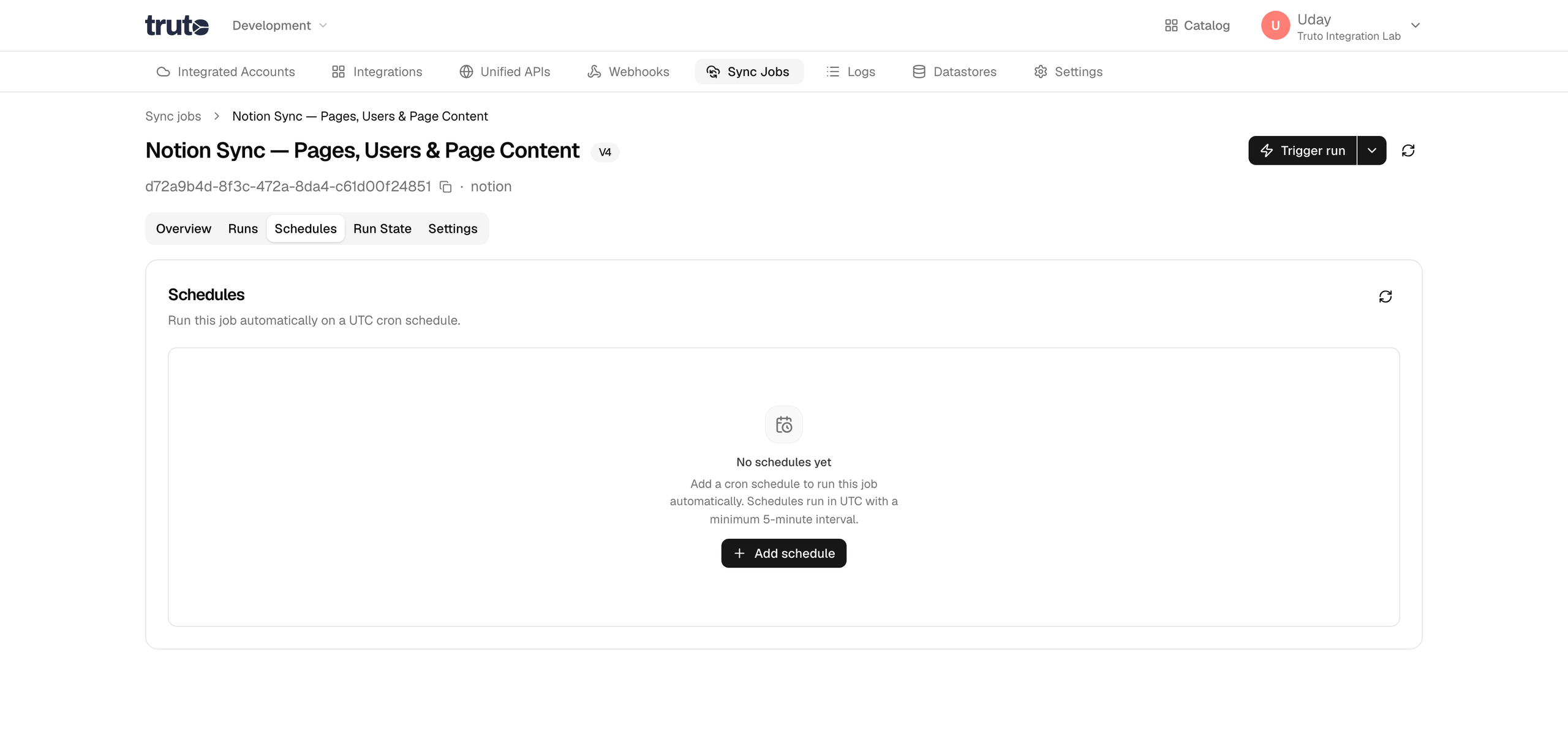
- The header notes that schedules use a UTC cron expression.
- Add schedule opens the schedule form.
- Each row shows Cron expression (with a UTC label), Target (integrated account and destination), and Updated.
- The row menu offers Edit and Delete.
- When no schedules exist, Add schedule is also shown in the empty state.
Schedules run in UTC with a minimum five-minute interval.
Settings
The Settings tab is where you edit or delete a job.
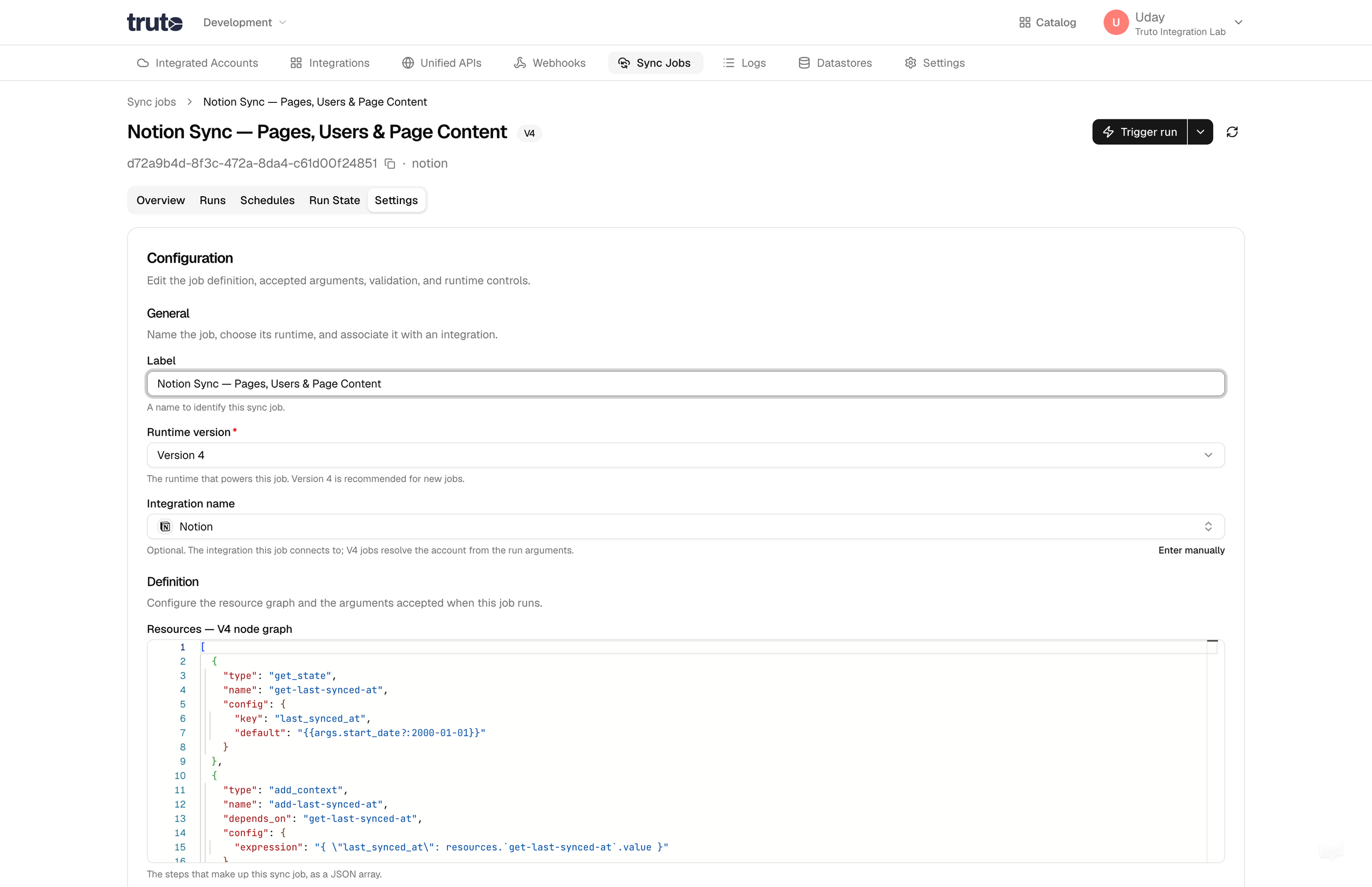
- Label — a name to identify this sync job.
- Runtime version — the runtime that powers this job. Version 4 is recommended for new jobs.
- Integration name — the integration this job is associated with, if any.
- Resources — the pipeline definition as JSON.
- Arguments schema and Arguments validation — optional runtime arguments and validation rules.
- Mutex key and State key — optional keys for concurrency and persistent state.
- Delay between requests (ms) — optional throttle between API calls.
- Save changes applies your edits.
- Delete sync job permanently removes the job and its run history.
Run detail
Click a run ID on the Runs tab to inspect a single sync job run.
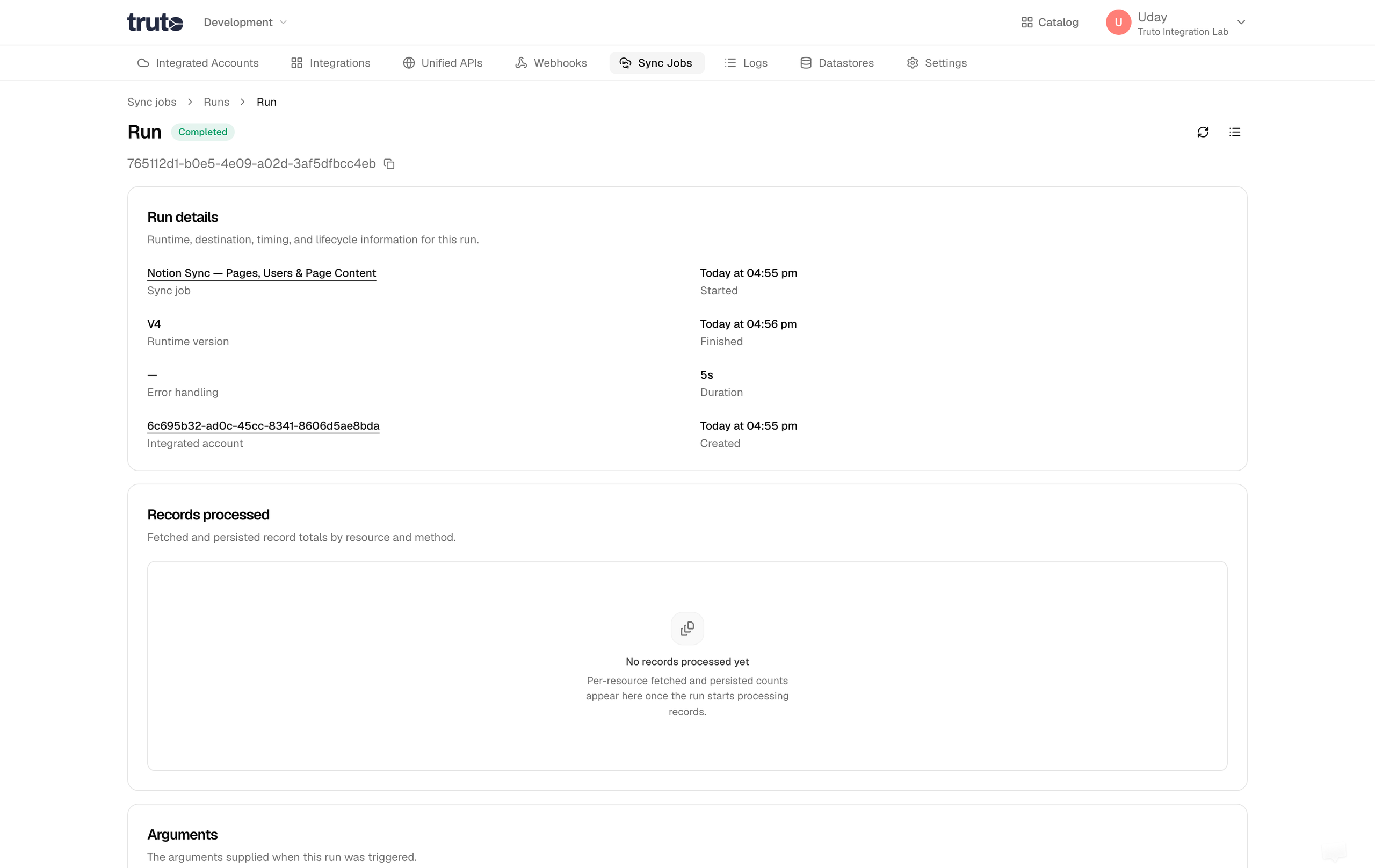
- « Runs returns to the run list for this job.
- The run Status tag reflects the current state (for example Running, Completed, or Failed).
- View logs opens the log viewer for this run.
- Stop run appears while the run is still active.
- Sync job links back to the parent job.
- Runtime version, Error handling, and destination fields (such as Integrated account, Webhook, or Datastore) show how this run was configured.
- Started, Finished, Duration, and Created summarize timing.
- Records processed breaks down persisted record counts per resource.
- Arguments shows the JSON args passed when the run was triggered.
Templates
Switch to the Templates tab to browse reusable sync job blueprints.
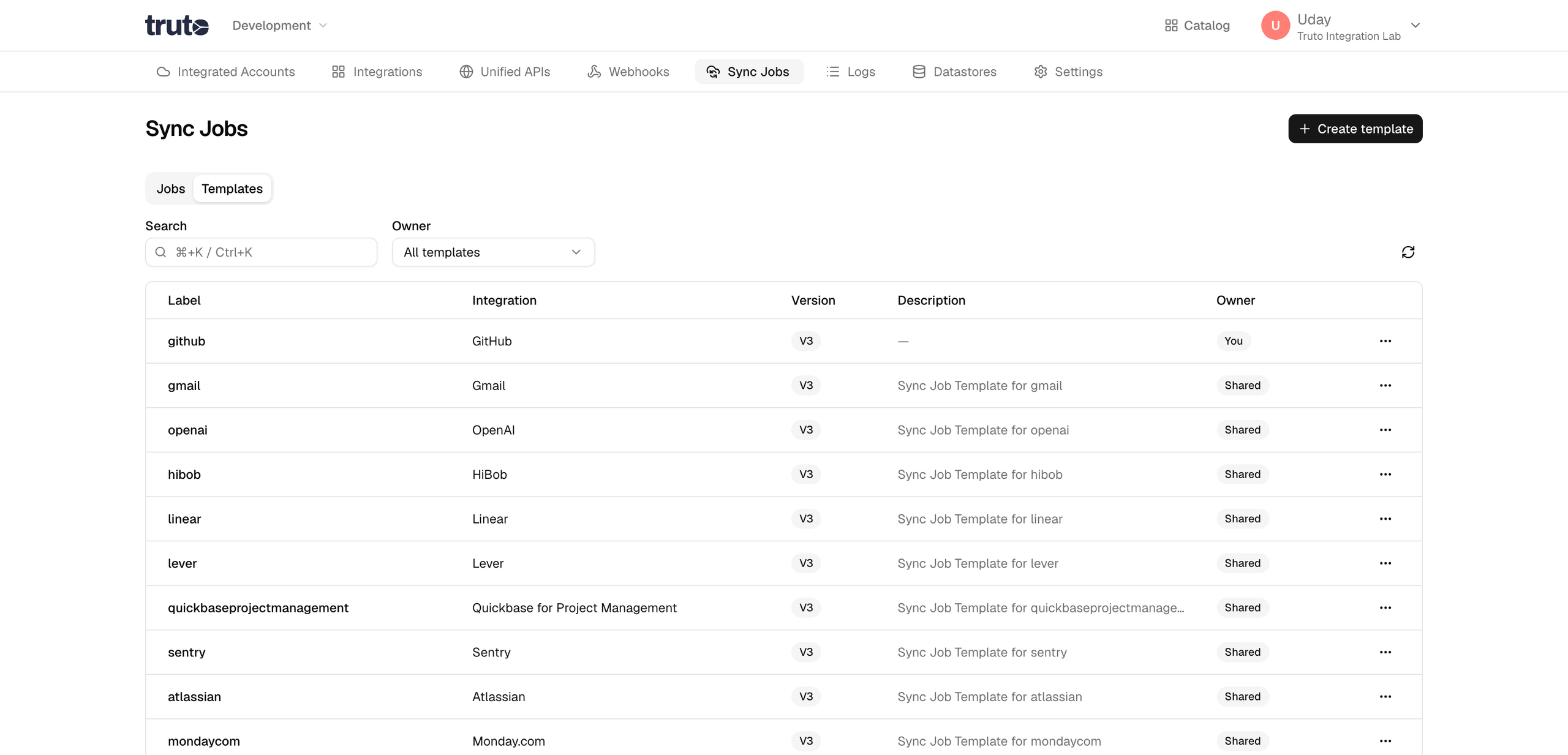
- Create template opens the template form.
- Search filters templates by label, integration, description, or ID.
- Each row shows Label, Integration, Version, Description, and Owner (You or Shared).
- The row menu offers Create job from template for every template. Edit and Delete appear on templates you own.
- Create job from template opens the job form pre-filled from the template so you can save it as a new sync job in your environment.