Integrated Accounts in Truto
Truto's "Integrated Accounts" feature is a powerful tool that helps you manage your connections to various APIs. Here's what it means and how it works:
What are Integrated Accounts?
"Integrated Accounts" are essentially your connections to various APIs. Once you've connected your account from an API, an 'Integrated Account' is created in Truto.
How to Access Integrated Accounts?
- Sign into your Truto account.
- Navigate to 'Integrated Accounts' from the menu or simply click here. Here, you'll see a list of all your connected accounts.
What Information is Displayed?
Each integrated account listed here will display some important details:
- Account ID: A unique identifier for the account.
- Tenant ID: The tenant that owns this account. One tenant can own many accounts across different integrations.
- Integration: The specific API or application that the account is connected to.
- Connected On: The date and time when the account was connected.
What Can You Do Here?
In the 'Integrated Accounts' section, you can:
- View Details: Check the details of any integrated account by clicking on it.
- Access APIs: Use both Unified and Proxy APIs.
- Check API Logs: Monitor the API's activities, identify any issues, and troubleshoot them.
Connecting an account via API
Use the following cURL command to generate a link-token. Truto uses Bearer authorization, replace the <your-api-token> in the command below with your API token.
curl --location 'https://api.truto.one/link-token' \
--header 'Content-Type: application/json' \
--header 'Authorization: Bearer <your-api-token>' \
--data '{
    "tenant_id": "acme-1"
}'
Response:
{
    "link_token": "e73c7b9b-2e4d-47d1-b5d2-83441fd24e4c"
}
Use the following URL, to launch Truto's connection UI. Remember to replace <link-token-from-previous-step> with the actual link token received from the API request.
https://app.truto.one/connect-account?link_token=<link-token-from-previous-step>Embedding the linking flow within your app
You can also use our Frontend Link SDK to embed the connection flow within your UI. More details here.
Connecting an account via Truto interface
-
Sign in to your Truto account.
-
Click on
Connect Account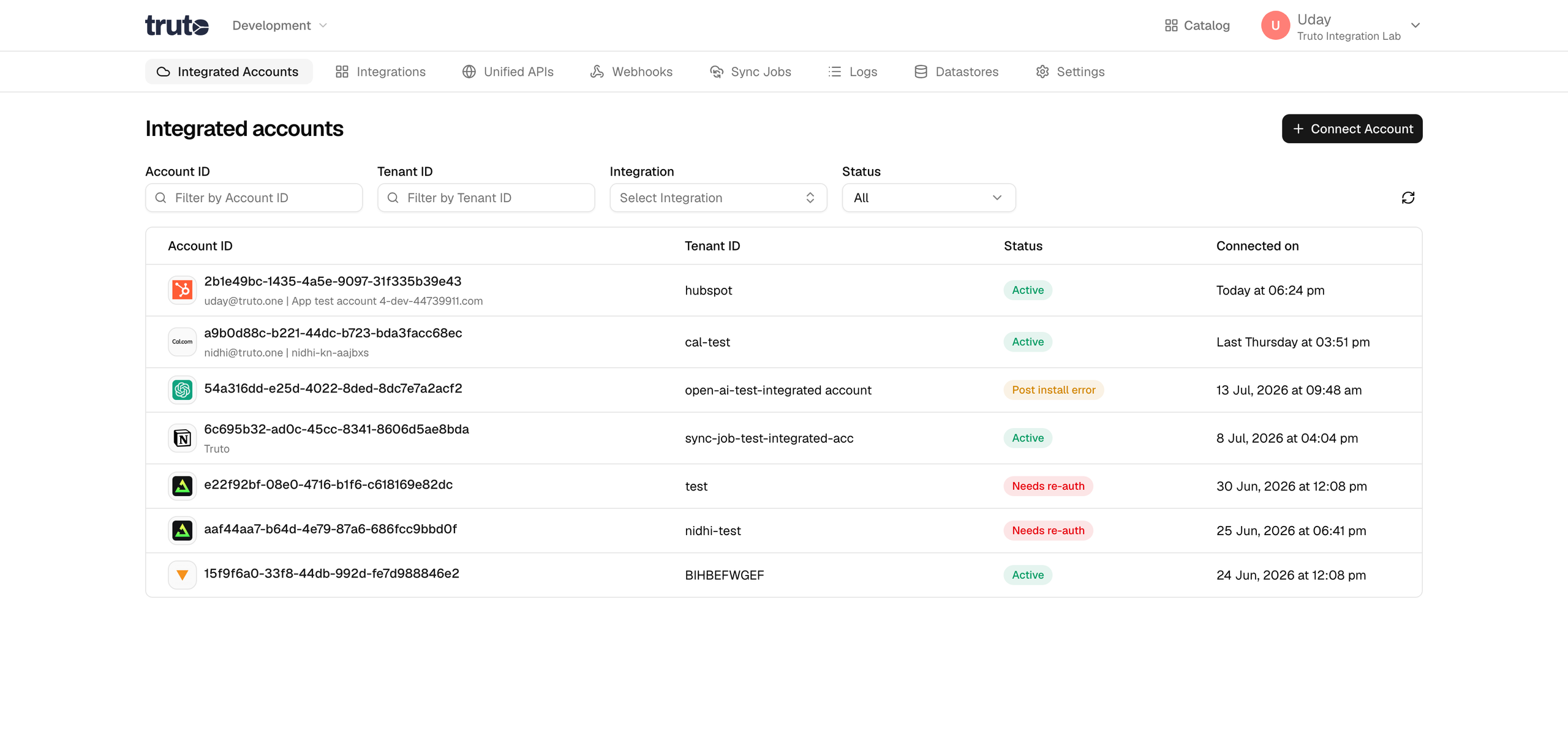
-
Type in a value for the Tenant ID. This can be any ID of your choosing (URL-path-safe, up to 255 chars — letters, digits, and
. _ : @ + -). If a tenant with that ID doesn't exist yet, Truto auto-creates one when the account connects. Then click onGet connection link.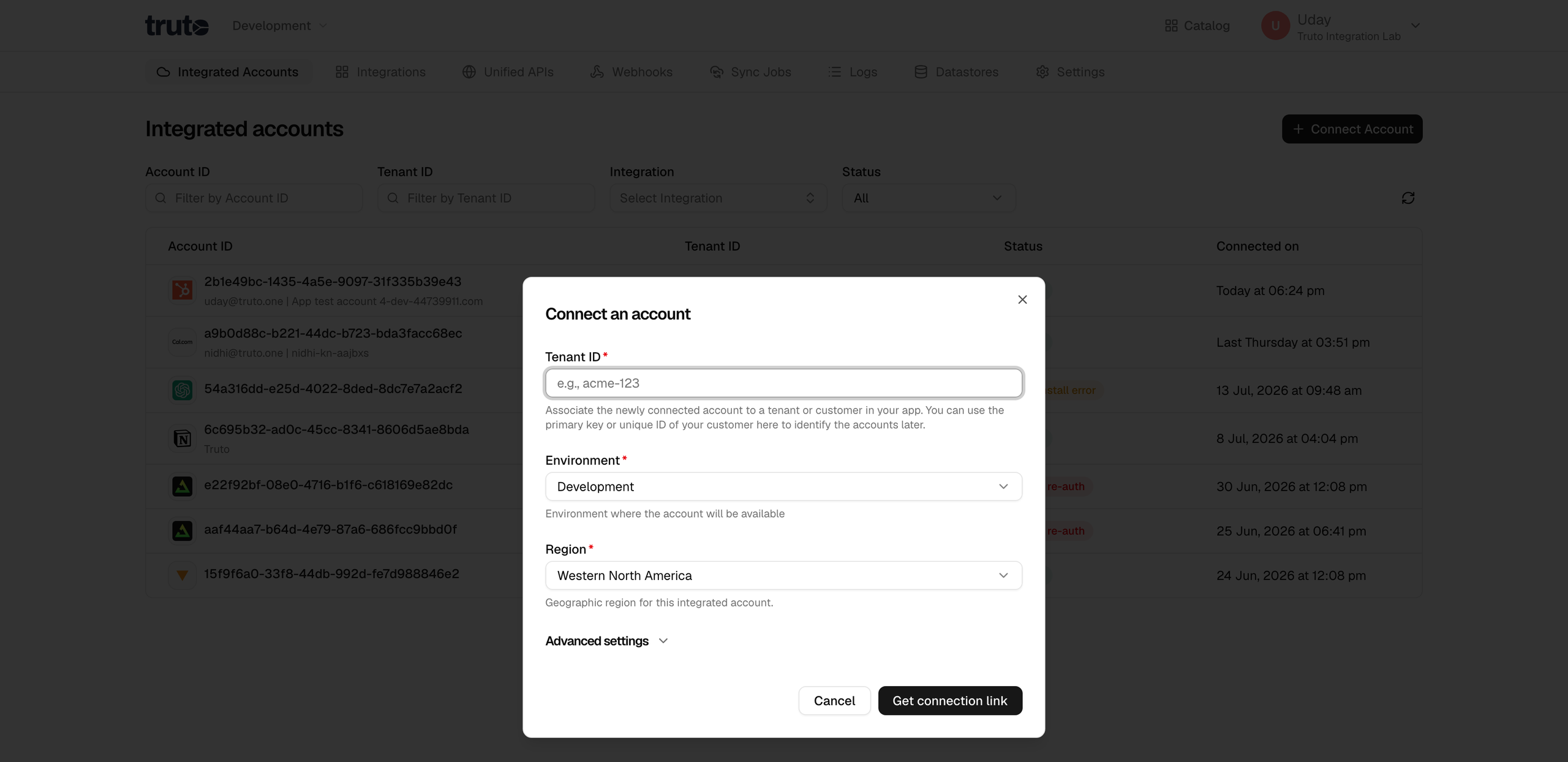
-
A new link will be generated. Clicking on the link will open a new tab with the list of integrations. You can share this link with your customers too, and they will be able to connect their account.
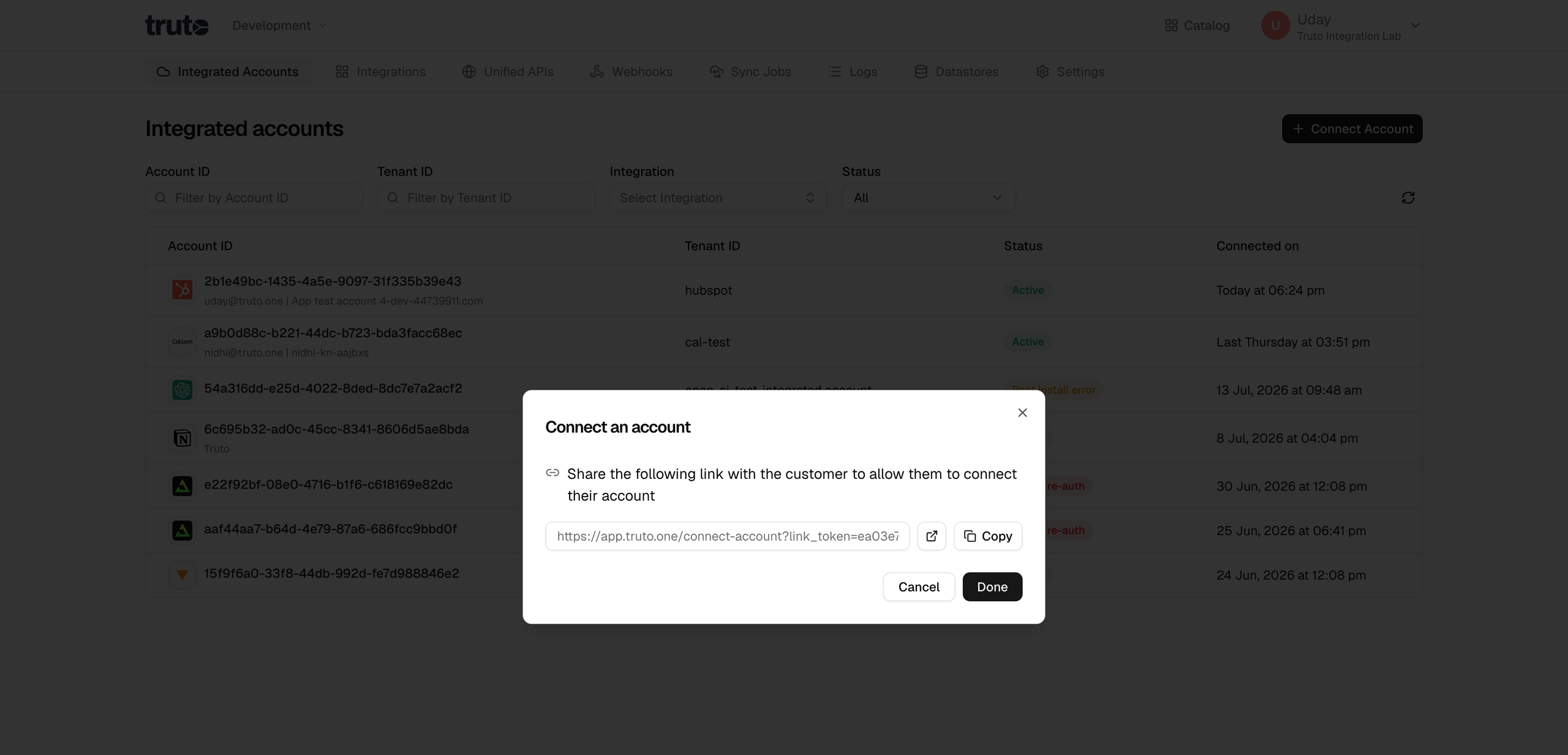
-
Select integration from the list to be created
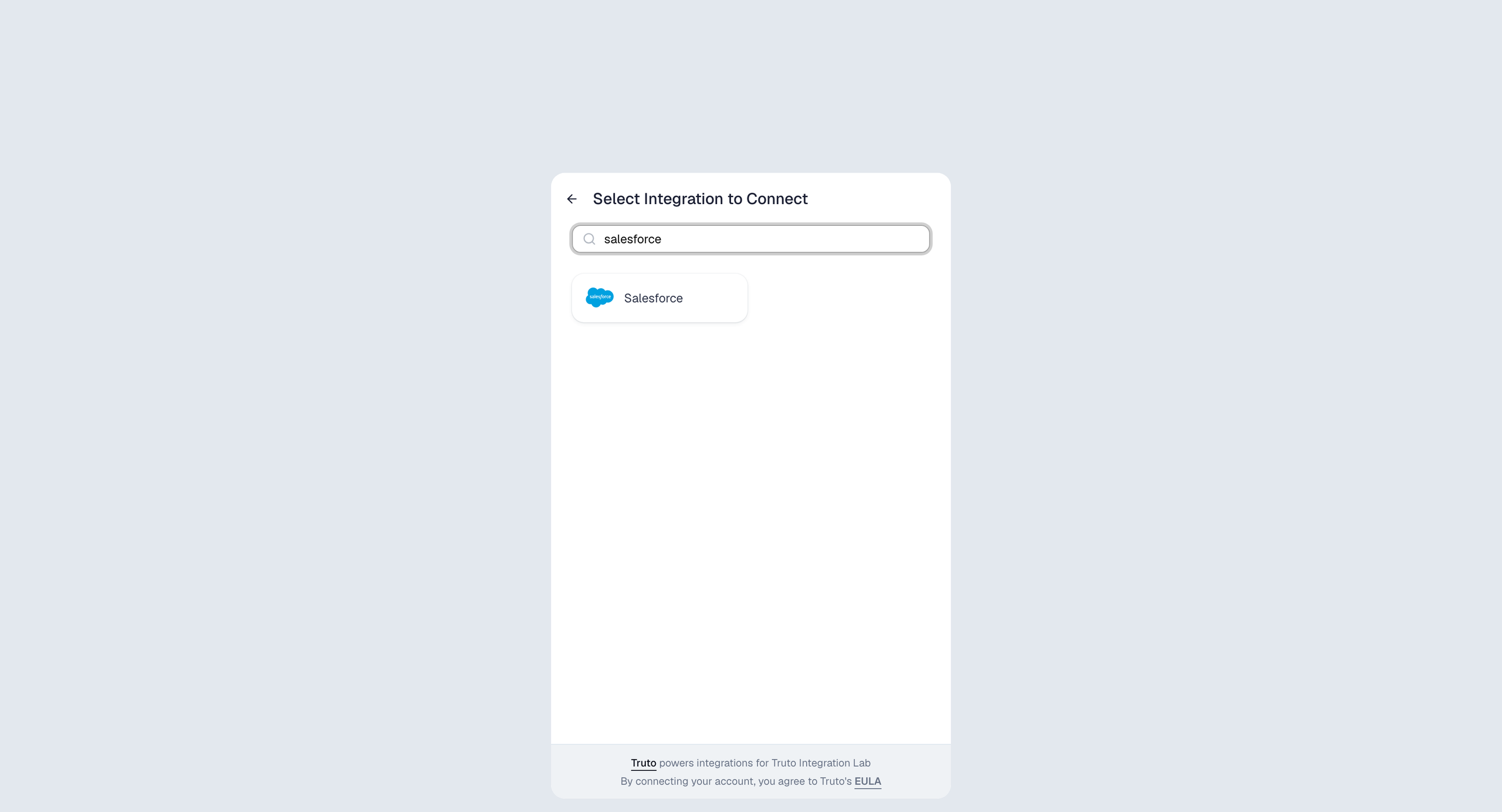
-
You'll now be asked to log in to your account and allow access to Truto. Go through the authentication steps.
-
Voila! You should now see a connection successful message. You can now close this tab.
-
Go to your Truto account, and you should see the new integration under
Integrated Accounts. Click on the Account ID to view the details and initiate API calls.