Okta
Install Okta integration
The Okta integration can be found here. Please install it in your environments before proceeding with the steps below.
Connecting a Okta account
Warning
AdminorSuper Adminrole is required to use this API
-
Click on Connect Account
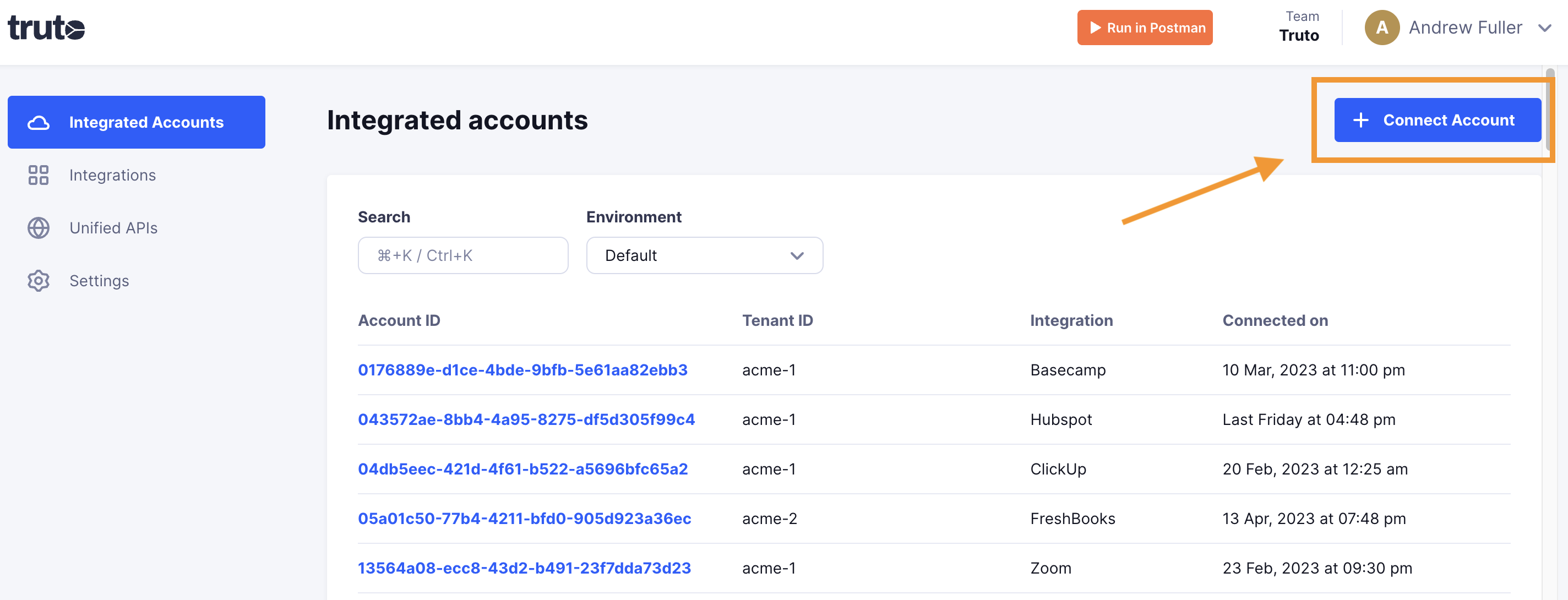
-
Type in a value for the Tenant ID. This can be any ID of your choosing. And then click on Get connection link
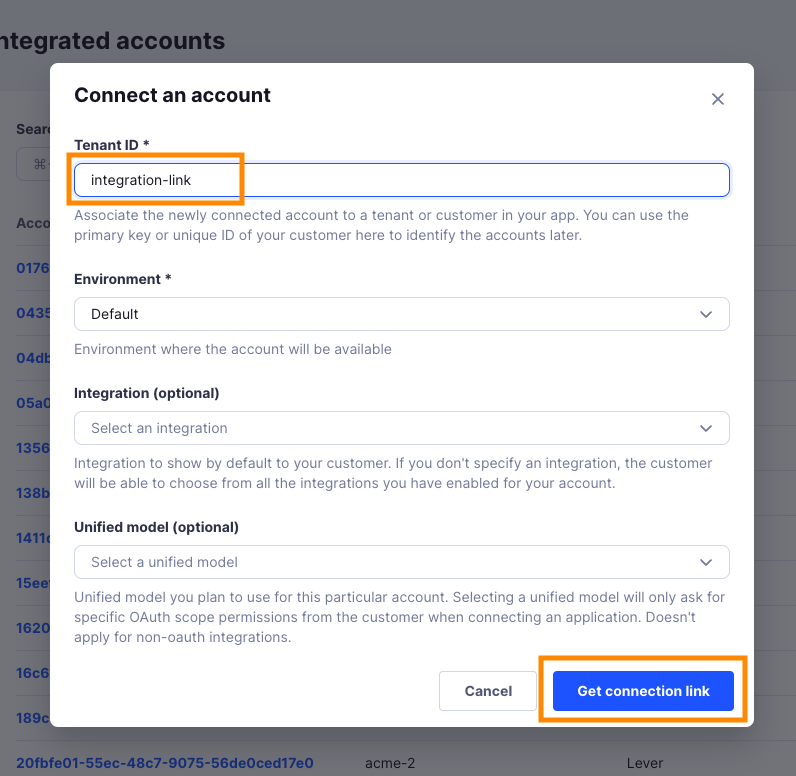
-
A new link will be generated. Clicking on the link will open a new tab with the list of integrations. You can share this link with your customers too, and they will be able to connect their Okta account.
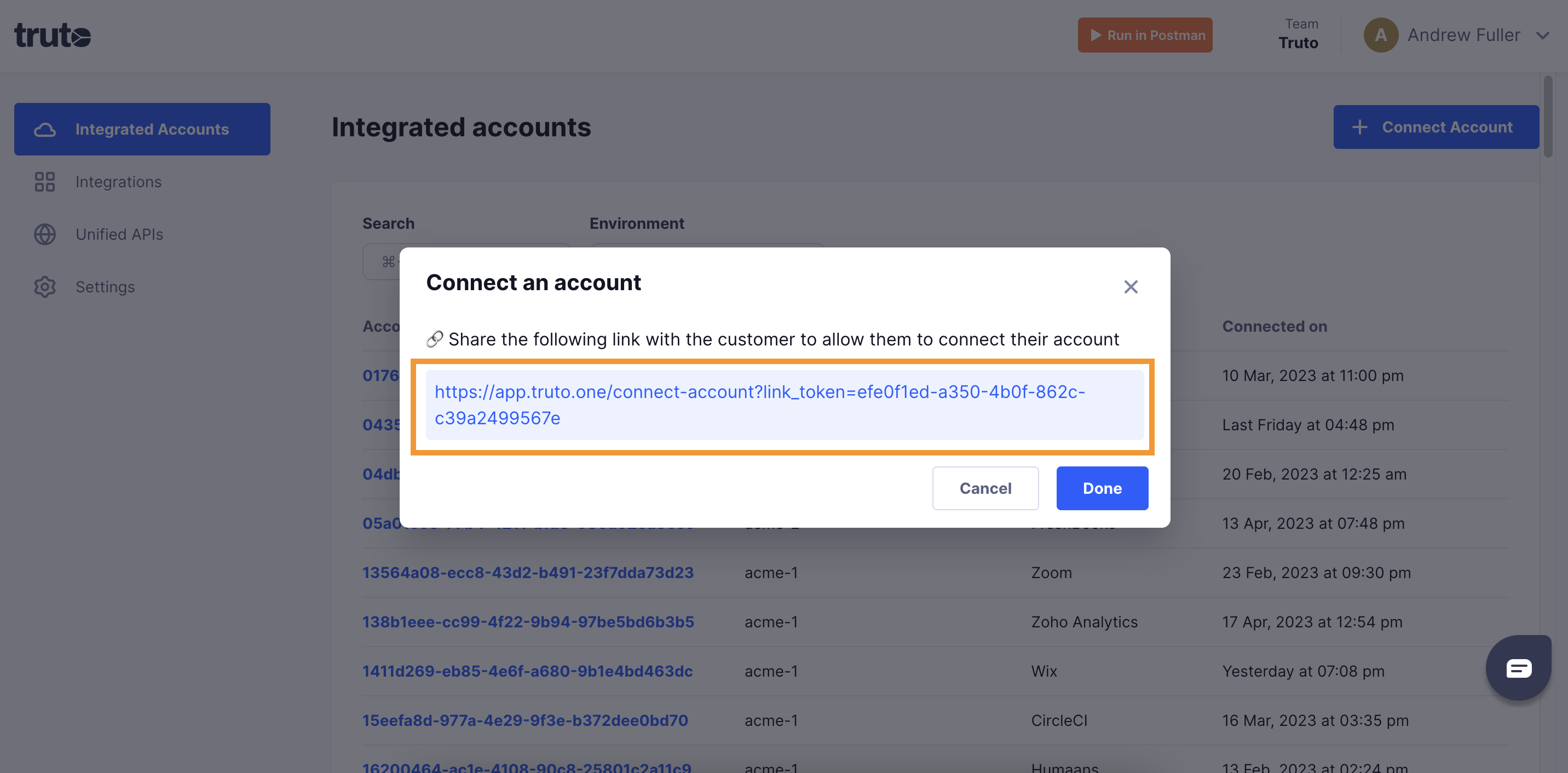
-
Select Okta
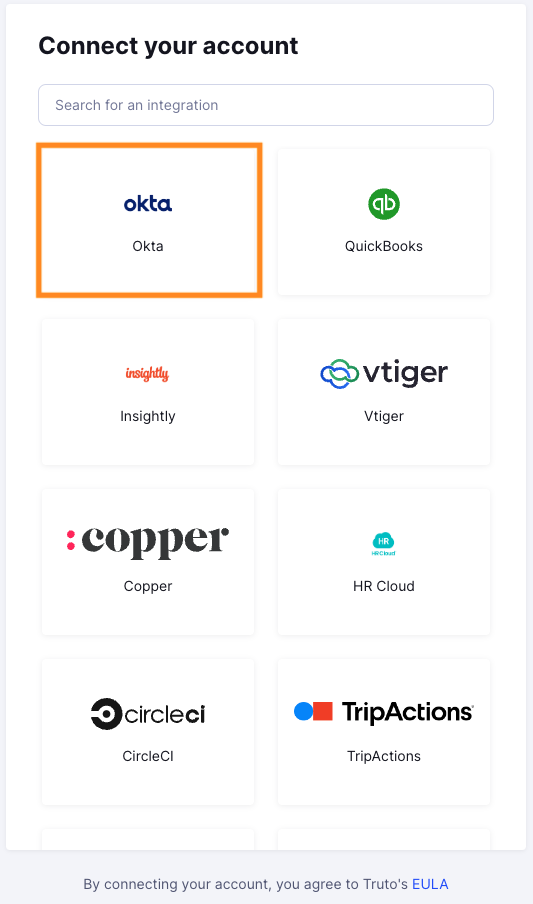
Finding your Okta Subdomain and API Key
- You'll now be prompted to add the
Okta Subdomain. Find the Okta Subdomain by signing in to your Okta account in your browser as shown in the image below.
- To find API Key, Sign in to your Okta organization as a user with administrator privileges.
- In the
Admin Console, selectSecurity>APIfrom the menu and then select theTokenstab. - Click
Create Token. - Name your token and click
Create Token. - Now copy the
Tokenand enter it in Truto. ClickConnect.
-
Voila! You should now see a connection successful message. You can now close this tab.
-
Go to your Truto account, and you should see the new Okta integration under Integrated Accounts. Click on the Account ID to view the details and initiate API calls.